A view is a saved way of looking at one collection: a type (table, board, calendar and four more), the conditions a row must meet to appear, the order the rows come in, and which properties are shown. A collection can have as many views as you like and they are independent — filtering the board changes nothing about the table. What they never do is change the rows themselves. Every view of a collection reads the same rows; only the drawing differs.
This page covers all seven view types, what each one needs before it can draw anything, the options each one offers, and how filters, sorting and visible columns work. The rows and the schema behind them are in Collections; the property types are in Properties.
One thing to know before the rest: a view is not a personal setting. It is stored on the collection, so a filter you add is the filter everyone sees in that view, on every device — the next time they open the collection. If you want your own cut of the data, add a view rather than change one.
The seven types
| Type | Draws | Needs |
|---|---|---|
table | rows and columns, one column per property | nothing |
board | cards in columns | a select, multi-select or relation to group by |
list | one quiet line per row | nothing |
gallery | cards with the row’s cover image | nothing |
calendar | a month grid, rows on their day | a date property |
timeline | bars across a day grid | a start date; an end date is optional |
form | fields that create a row when submitted | nothing |
A collection that has just been created carries two views: Board, grouped by the Status property, and Table — in that order, so the board is what opens first.
A database created by an agent gets those same two views, whatever schema the
agent supplied — including a Board grouped by a property with the id status.
If the schema has no such property the database opens on This board needs a
Select property to group by. Open ⚙ Properties to add one. Point the board at a
real property with the Group button, or with set_view and group_by, or
remove the board and keep the table.
table
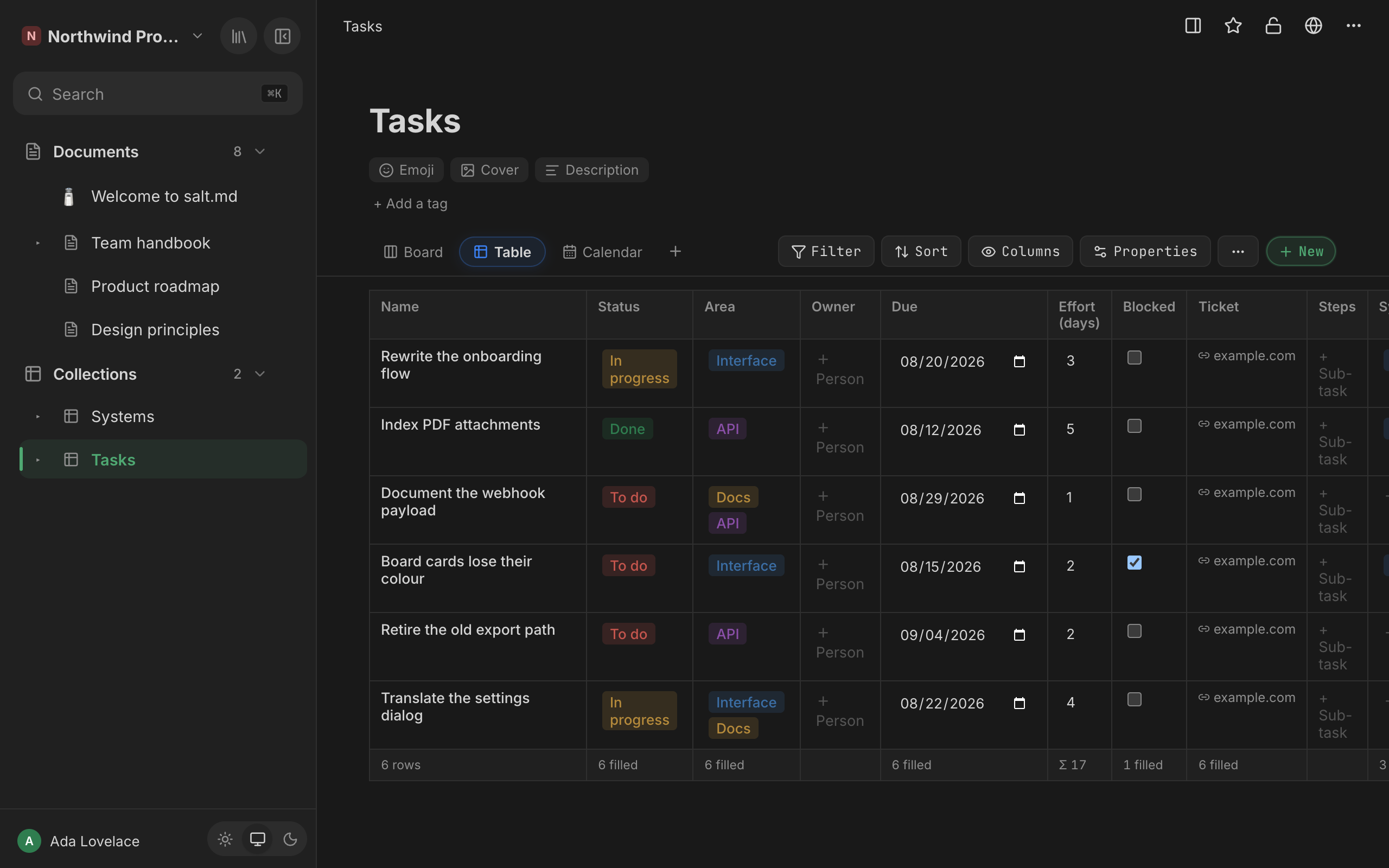
The plainest view, and the only one that shows every visible property including the ones that are empty. The first column is always Name and links to the row; after it comes one column per visible property, in schema order. Cells are editable where you stand: type into a number, tick a checkbox, pick a select option. Editing a select option’s name or colour from a cell changes the schema, so it changes that option in every view and on every row.
Under the title sit the row’s tags, and a coloured dot appears beside a row an agent is working on right now.
When the table has rows, its foot is a calculation row. Under each column it
shows either a sum (Σ, for number, rollup and formula columns) or how many
cells are filled. It is not configurable — there is one aggregate per column and
it follows the type. The left-hand cell counts the rows: 42 rows, in your
own language. On a table with no rows there is no foot at all, only the
empty-state line.
Sub-items. When the collection has a relation property pointing back at
itself, the settings bar offers a picker: No sub-items, or that property.
Choose it and the table becomes a tree — a row that points at other rows in the
same collection gets a ▾ to fold them away and a ▸ to bring them back (the
buttons are labelled Collapse and Expand for screen readers). Rows drawn
as children are not repeated at the top level. Two things this does not do: a
relation that loops back on itself cannot make the display loop, and a row whose
parent is filtered out is not lost — it simply becomes a top-level row.
Which branches are folded is yours alone and is not stored on the view. Leave the collection and come back and everything is open again.
The table scrolls sideways when there are more columns than screen.
board
Cards in columns, one column per option of the property it groups by, plus a catch-all column at the end whose name is No followed by the property’s name — No Status on a board grouped by Status. That last column holds rows with no value — and rows whose value points at an option somebody has since deleted, so a card can never disappear from the board entirely.
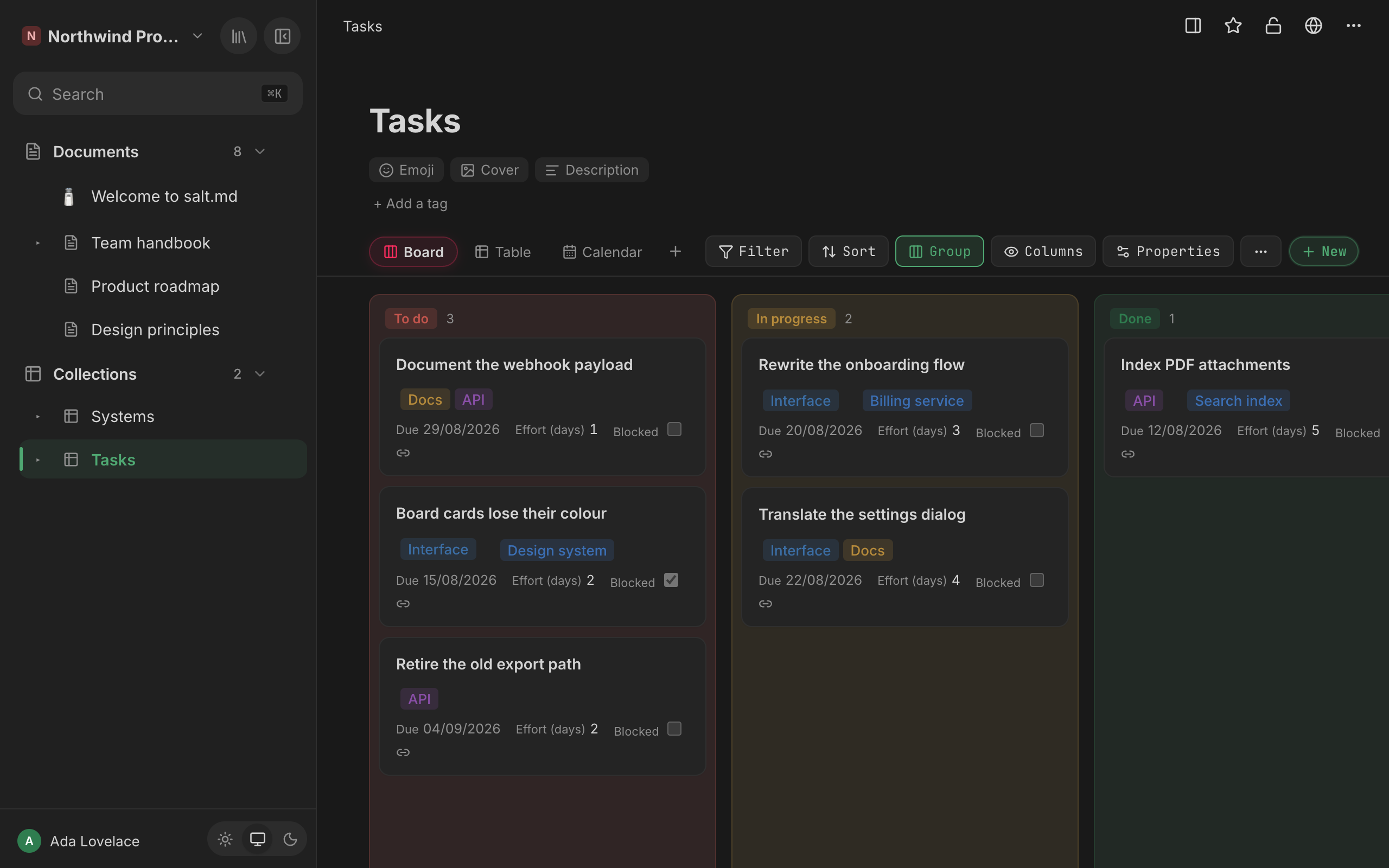
Each column heading is a chip with the number of cards beside it. A select or multi-select lends the chip its option’s own colour; columns made from a relation, and the catch-all column on every board, are grey — a row has no colour to give.
A board can group by a select, a multi-select or a relation:
- Grouping by a select is the usual case: one column per status.
- Grouping by a multi-select puts a card in every column it belongs to. The same card is then on screen more than once, and each copy has its own menu.
- Grouping by a relation turns the rows of the other collection into the columns — one column per customer, per system, per whatever the rows point at. The column headings are those rows’ titles.
Which one it is, is chosen with the Group button in the settings bar; it lists every select, multi-select and relation property in the schema.
Moving a card. Drag it. With a mouse the drag starts after a few pixels; with a finger you hold the card for about a third of a second first (a short vibration where the device does one), because otherwise every attempt to scroll the board would pick a card up instead. A floating copy follows the pointer, the target column lights up, and a column scrolls by itself when you hold a card near its top or bottom edge.
Note what a drag onto a multi-select or relation board does: it replaces the value with that one option. It does not add to what is there. And dragging a card into the catch-all column clears the value altogether — that is the only way to unset a grouped property without opening the row.
Every card also has a ⋯, and a right-click anywhere on the card opens the same
menu:
| Entry | What it does |
|---|---|
| Open | Opens the row as a page. |
| Move to → a column | Same as dragging. Only columns the card is not already in are listed, and picking No … clears the value. |
| Move to trash | Asks Move “…” to the trash? with the row’s title first, then moves the row to the trash. Reversible from Trash. |
At the bottom of every column is + New, which creates a row with that column’s value already set and opens it. Under the catch-all column it creates a plain row with nothing set.
What a card shows is decided by role, not by schema order, so cards look alike no matter how the schema grew: coloured chips first (select, multi-select, relation), then facts with their field name (numbers, dates, checkboxes, checklists, rollups, formulas), then one short text, then small icons for the values that only need to say “this exists” — email, phone, postal address, link. People from every person property collapse into one stack of faces in the corner. The field name is left off a fact only when the card has a single fact and the property is called Date, Datum, Number or Zahl, where repeating it would say nothing.
A card prints at most eight lines of facts and text together, and only ever one text — a second one goes below the line however few facts there are. What is left over is counted rather than dropped: +3 more opens it in place and less folds it away again. Open a card’s tail and it closes itself when you leave the view; it is a glance, not a setting.
The property the board groups by is left off its own cards, since the column heading already says it, and empty select fields stay invisible until you hover the card — so a status can be set without opening the row, without putting a row of dashes under every title. Open comments show as a speech bubble with their count.
list
One line per row and deliberately not a narrow table: no header row, no column grid, nothing scrolls sideways. The icon and title lead, the tags follow, and then the first three visible properties trail quietly behind — still editable, so a select can be changed from the line. Which three depends on schema order and on what you have hidden; hide a column and the next one moves up. Anyone who wants to compare values down a column takes the table instead.
gallery
A responsive grid of cards, each at least 200 px wide. The top of the card is the row’s cover — the image or gradient set on the row itself. A row without one shows its icon on a plain panel instead.
Below the cover: the title, the tags, and the visible properties. Select and multi-select are editable straight on the card and are shown even when they are empty, so you can set one. Every other property is read-only here and is left off entirely when it has no value, which is why gallery cards are different heights — and why the table, not the gallery, is where a missing value is visible.
calendar
A month grid. Every row that has a value in the chosen date property appears in that day’s cell as a clickable entry with its icon, title and tags. Rows without a date simply do not appear.
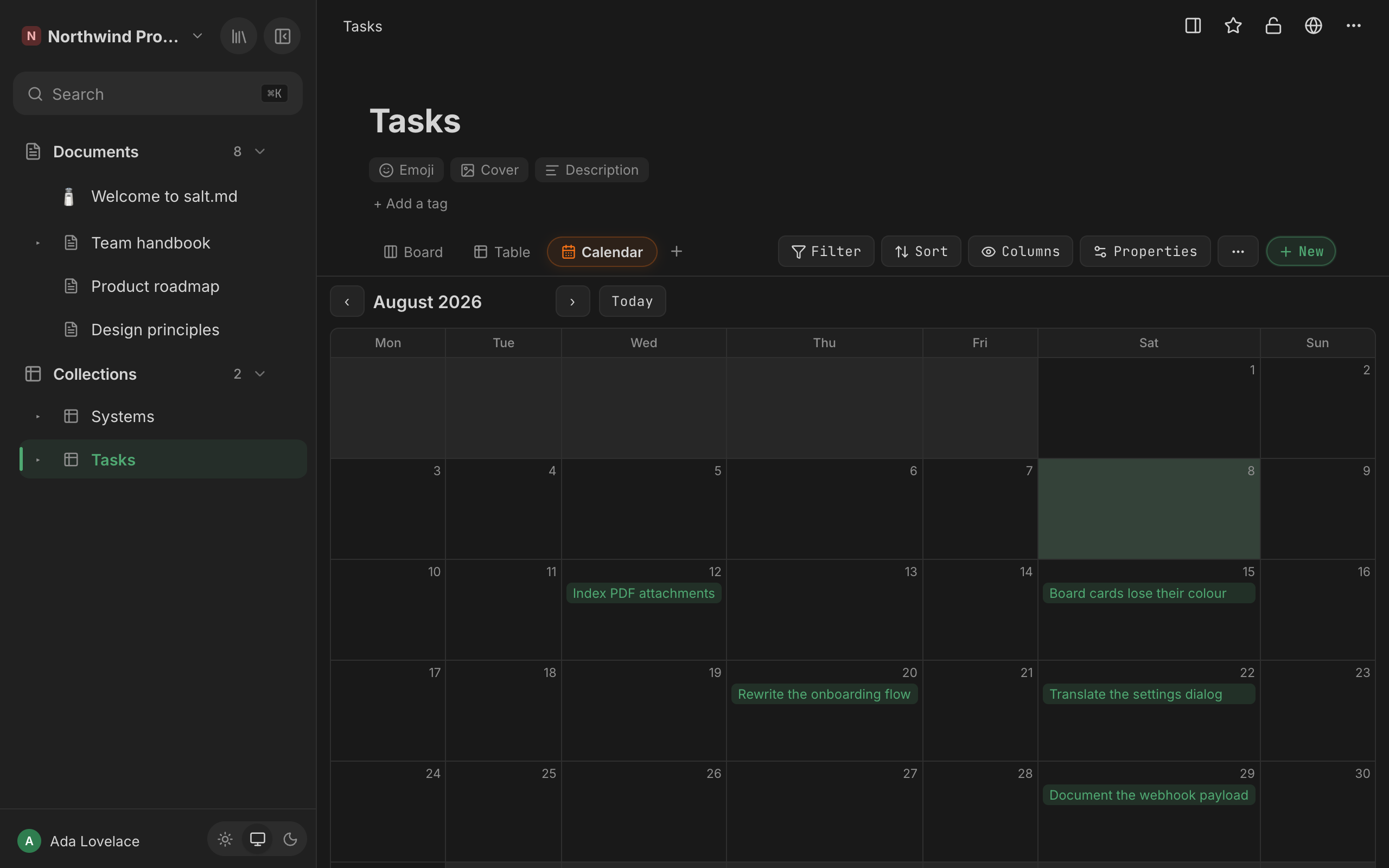
The head of the calendar has ‹, the month and year, ›, and Today, which
jumps back to the current month. Which day the week starts on follows your
language and region — Monday across most of Europe, Sunday in the US and Japan,
Saturday in much of the Arab world — and the column headings are rotated to
agree with it. You can override it under Week starts on in your
account settings.
A date property is a calendar date and is never shifted by a time zone: a row dated the 18th sits on the 18th for everyone.
One limit: the calendar’s date property is chosen when the view is created — the
first date property in the schema — and the settings bar has no control to change
it afterwards. An agent can change it with set_view and date_prop. Without a
usable one the view says This calendar needs a Date property. Open ⚙ Properties
to add one.
timeline
A horizontal day grid with a sticky title column on the left, one bar per row, month headings across the top and a line marking today. Clicking either the label or the bar opens the row.
The settings bar carries two pickers for this view, and only for this view:
| Picker | Options | Effect |
|---|---|---|
| Start: | Start: —, or any date property | Where the bar begins. Choosing the dash clears the choice, and the timeline falls back to the first date property in the schema. |
| End: | End: (none), or any date property | Where the bar ends. With none, every bar is one day wide. |
When you create a timeline it takes the first date property as its start and the second as its end, if there is one. A row without a start date is left out. If no row has one, the view says No entries with a date yet. Set a start date so they appear on the timeline. With no start property at all it says This timeline needs a Date property as its start. Open ⚙ Properties to add one.
The visible range always contains today: it runs from three days before the earlier of today and the first start, to four days after the later of today and the last end. So a plan that lies entirely in the future begins three days before today, not three days before the first bar.
form
A form view turns the collection into something that can be filled in — by you, or, once published, by anyone with the link. Submitting creates one row.
The form is: a required Title field (placeholder Name of the entry), then one field per fillable visible property. Fillable means one of seven types:
| Type | Field |
|---|---|
| text | a text box |
| number | a number box |
| date | a date picker |
| checkbox | a tick box |
| select | a dropdown of its options |
| multi-select | chips you switch on and off (No options defined when it has none) |
| person | a text box |
Everything else — url, checklist, relation, rollup, formula, backrelation — never appears on a form. There is nothing to type into a calculated value, and a relation would mean handing a stranger a list of your other rows.
The heading and the description above the fields are edited in place, on the form itself, and are stored on the view (Description (optional) — explains what the form is for.). A form view has no Filter, Sort or Group button and no New button — the form is the way rows are made here.
You can use the form yourself before it is published, and pressing Enter in the Title field submits it. Your own submission is confirmed differently from a visitor’s: Sent / Your answer has been saved. with a Send another answer button.
The submit button reads Absenden. Its label is stored on the view, but no
control in the interface writes it and set_view does not accept it, so the
German fallback is what everybody gets unless the view configuration is written
directly through /api/collections/{id}.
Publishing. The bar above the form has Share publicly. Press it and a
link is created and copied to your clipboard; the bar then shows a Public
badge, Copy link and Revoke. The link looks like /form/<token> on
whatever address your instance publishes under.
Two things about that link are worth knowing before you send it out:
- Copy link mints a new one. The token is stored only as a hash, so the existing link cannot be recovered — pressing Copy link creates a fresh link, and the one you handed out earlier stops working. A collection has one live form link at a time.
- The first form view wins. If a collection has two form views, the published link always renders the first one in the tab order.
What a visitor sees is the collection’s icon, the heading, the description, the same fields, a submit button and a Made with salt.md line; then Thank you!, Your answer has been submitted. and a Send another answer button. The heading is the form’s own if it has one and the collection’s name otherwise, so give the form a heading when the collection is called something you would not send to a stranger.
Beyond that they see nothing: not a row, not the rest of the workspace — the link grants “write one row”, never “read the page”. Submissions are rate-limited per address, the title is required and a title over 2000 characters is refused, values that are not valid for their property are dropped (a select value that is not one of the options, a number that arrives as text), text is cut at 4000 characters, and a form on a collection that has been moved to the trash stops accepting anything. If the link has been revoked, the visitor gets Form not found and This link is not valid or has been switched off.
Hiding a property under Columns hides it on the public form too. More on the published side in Sharing.
The settings bar
The view tabs sit on the left of the collection’s toolbar; everything that configures the current view sits on the right, in this order:
| Control | What it opens |
|---|---|
| Start: / End: | Timeline only — which date properties the bars use. |
| No sub-items / a relation | Table only, and only when a relation points back at this collection. |
| Filter | The conditions a row must meet. Shows the count: Filter (2). |
| Sort | One property, ascending or descending. |
| Group | Board only — which property makes the columns. |
| Columns | Which properties this view shows. Shows Columns (4/7) when anything is hidden. |
| Properties | The schema editor: add a property, change a type, edit select options. It edits the collection, not the view, so it changes every view at once. This is the ⚙ Properties the empty-state messages point at. |
| ⋯ (View options) | Rename, move and remove this view. |
| + New | Creates an Untitled row and opens it. Every view except a form has it. |
Filter, Sort, Group and Columns light up in the accent colour as soon as anything is set, so you can see that a view is filtered without opening the popover.
On a narrow screen (about 640 px and below) those four popovers dock to the bottom of the window instead of hanging under their button, and take up to about three quarters of its height.
Filters
A filter is a property, an operator and usually a value. Several filters on one view are ANDed: a row has to satisfy all of them.
Add one with + Add filter… in the Filter popover; remove it with the ✕
beside it.
Seven operators exist. Which of them are offered depends on the property type, and the labels change to suit it:
| Property type | Operators offered |
|---|---|
| number, rollup, formula | is · is not · > · < · is empty · is not empty |
| date | is · is not · after · before · is empty · is not empty |
| text, person | is · is not · contains · is empty · is not empty |
| everything else | is · is not · is empty · is not empty |
What they mean:
| Operator | Matches |
|---|---|
is | equal to the value — or, on a list property, containing it |
is_not | not equal, and an empty value counts as “is not X” |
is_empty | nothing there: no value, an empty text, an empty list |
is_not_empty | anything there |
contains | the value as a substring, also inside a list |
gt | greater than. Numeric as soon as the value you type is a number — a cell holding text then counts as 0. Otherwise both sides are compared as text, which is what makes after work on dates. |
lt | less than, same rule |
Three behaviours that surprise people:
is_notincludes the empties. A row with no status counts as “not done”. That is usually what is meant on a working board and occasionally not.isandcontainslook inside lists. Filtering a multi-select or a relation for one value needs no special operator.- You never type an id. The value box adapts to the property: a select offers its options, a checkbox offers Checked and Unchecked, and a relation or backrelation offers the titles of the rows it points at. Free text is only for the types that have nothing to offer.
The row title is not a property and cannot be filtered. To find rows by title use Search.
Filtering happens twice. The conditions go to the database first, so a collection with fifty thousand rows is narrowed before anything is sent; what is left arrives in batches of 200 until all of it is here, which is why a board column’s count is a true count and not “the first page of results”. Then the browser applies the same conditions again to what arrived — this time with the calculated values filled in, which the database did not have.
That second pass is the whole reason the next paragraph reads the way it does.
Filters on calculated values are unreliable. A rollup, a formula and a backrelation are not stored on the row. They are worked out when the rows are read, which happens after the database has filtered — so to the database they look like nothing at all:
| Operator on a rollup, formula or backrelation | What you get |
|---|---|
is, contains, >, <, is not empty | an empty view — the database matched nothing |
is not, is empty | every row passes the database, and the browser then narrows it correctly |
So two of the seven happen to give the right answer and five give a blank screen. Build a view on neither: put the condition inside the rollup instead (see Properties), or keep a stored property alongside it. The operators are offered in the popover all the same.
Sorting is not affected. A sort on a rollup or a formula works in the
interface, because every row is loaded and the browser sorts the finished
values. Over the API and over MCP, where a limit cuts the result short, it does
not — there the sort is the database’s alone.
Sorting
One property, Ascending or Descending, or No sort — the popover behind the Sort button. Text is compared the way your language sorts it, so accented letters land beside their plain forms instead of after Z; numbers are compared as numbers.
With no sort, rows keep the order they have in the collection: the manual position first, then when they were created. That is also the order cards come in inside a board column and across a gallery.
Like a filter, a sort belongs to the view and applies for everybody looking at it.
Which properties a view shows
The Columns button opens two lists, Shown and Hidden, each row with its type icon and an eye. Click a row to move it between the lists. Hide all and Show all do the obvious, and the popover says Nothing shown or Nothing hidden when a list is empty.
Hiding is per view and reaches every renderer, not just the table: hidden properties disappear from table columns, board cards, gallery cards, the three properties a list line shows, the fields of a form and the fields of the published form.
Do not hide the property a view is built on. A board that groups by Status and hides Status can no longer find it and falls back to the message This board needs a Select property to group by. Open ⚙ Properties to add one. The same applies to a calendar’s date property and a timeline’s start. There is no reason to hide it anyway — a board already leaves the grouping property off its own cards.
What a view leaves out without saying so
Two absences are silent by design.
Rows you are not allowed to see. A row marked private belongs to the person who made it. It is filtered out in the database, before the total is counted, so it is missing from every view, from the batch loading and from every board column count. A workspace admin sees everything. Nothing on screen says a row was left out — the count is simply the count of what you may read. See Permissions.
Nothing at all. An empty view says No rows yet — click + New above. when the collection is empty, and No rows match the current filter. when it is not. The two are worth telling apart before you go looking for lost data.
Creating, renaming, reordering and removing views
- Add a view with the
+at the end of the tabs (tooltip Add view). The menu offers Table, Board, Gallery, Calendar, Timeline, List, Form. The new view is named after its type, is appended at the end, and opens straight away. - Rename by double-clicking the tab, or through
⋯→ Rename view. - Move it along the strip with
⋯→ Move left / Move right. The entries grey out at the ends. The order of the tabs is the order they are in; the first tab is what opens when someone opens the collection. - Remove with
⋯→ Remove view. It happens at once, without a confirmation, and takes the view’s filters, sort and hidden columns with it. The rows are untouched. On a collection with one view the entry is not offered — a collection needs something to draw.
The ⋯ carries the tooltip View options and sits in the settings bar on the
right, not inside the tab.
When a new view is created, sensible defaults are filled in so it draws something immediately: a board takes the first select or multi-select property, a calendar the first date property, a timeline the first date property as its start and the second as its end. If the schema has none of those, the view says what it is missing.
Changes save as you make them, and are what everybody gets the next time they open the collection. Row changes travel live: a card someone else moves moves on your screen too, in this collection and in the same collection embedded in a document. A change to the view itself — a filter, the sort, hidden columns, a new tab — does not. A second browser that already had the collection open keeps the configuration it fetched when it opened, and picks the new one up on a reload.
An embedded collection is the same collection, with the same views — changing a filter there changes it everywhere.
Copying a set of views to another collection is not something the interface can
do. What it can do is copy a whole workspace’s structure:
workspace(from_workspace:), and the blueprint shelf under New workspace,
take the databases with their schemas and their views, without rows and without
documents. Filters on a relation are dropped on the way, since the rows they name
are not copied.
Views over MCP
An agent reads and writes views with three tools.
get_collection(page_id:) returns the schema and every view with its id.
set_view(page_id:) creates a view when no view_id is given and changes one
when it is. It takes name, type (creating only), group_by, date_prop,
end_date_prop, filters, sort and hidden.
set_view(page_id: "<collection>", name: "Open", type: "board", group_by: "status",
         filters: [{property: "status", op: "is_not", value: "done"},
                   {property: "status", op: "is_not", value: "dropped"}],
         hidden: ["due"])
Four rules govern it:
- Updating merges. What you do not mention stays as it is, the same way
update_schemabehaves. Renaming a view does not drop its filter. - Empty clears.
filters: []removes every condition andsort: ""removes the sort — without that distinction a filter could be added and never removed. Clearing a board’sgroup_bythe same way is refused, because a board with no grouping has no columns. - A typo is refused, not ignored. An unknown property, an unknown operator, a
board with no
group_by, a calendar or timeline with nodate_prop— all rejected with a message naming the offending value. A view that quietly ignored a mistake would leave the agent reading unfiltered rows as the truth. - A view’s type cannot be changed. Delete it and create the new one. The type is what everything else in the view is describing.
sort is spelled "propertyId:asc" or "propertyId:desc" — the same spelling
query_rows uses, so there is one form to learn rather than two.
delete_view(page_id:, view_id:) removes a view; the last one cannot be deleted.
A read-only token is refused by both writing tools.
Three things are not reachable from MCP: a form view’s heading and description, typed on the form itself; its submit label; and a table’s sub-item relation, chosen in the settings bar.
A new view’s id is derived from its name, so a view created as “Open” gets the id
open. Call get_collection if you need to be sure.
Reading rows without a view
A view is not needed to ask a question once. query_rows(page_id:) takes the
same operators, the same propertyId:asc sort spelling, and limit (default 50,
maximum 500) with offset. It is more forgiving in one way than a view is: a
filter value may be a select option’s name as well as its id, matched without
regard to case.
The same is available over HTTP: GET /api/collections/{id}/rows takes
filter=<property>:<operator>:<value> (repeatable, ANDed),
sort=<property>:asc|desc, limit (default 100, maximum 500) and offset, and
answers with the rows, the total, and the offset and limit it used. Both routes
run the same permission checks and the same database filter as a view does —
including the blindness to calculated values described above.
Where to go next
- Collections — rows, the schema dialog, nesting, embedding
- Properties — all thirteen types, and what each one is for
- Sharing — publishing a form, and what is never shared
- Agents — connecting an agent over MCP in the first place