salt.md is private by default: every page needs a signed-in account with access to the workspace it lives in. Publishing a page is the one deliberate exception. It turns a single page into a read-only web page at an unguessable address that anyone can open without an account. This page covers how to publish, what the link can carry (an expiry date, a password), exactly what a visitor sees and what they never see, and how to take it back.
Two words are easy to confuse and mean different things. A page that is visible to the workspace is visible to the people in that workspace, all of whom are signed in. A page that is shared to the web is readable by whoever holds the link. The rest of this page is about the second one; the first is covered in Permissions.
What a public link is
One page, read-only, no account, no session. The address looks like this:
https://salt.example.com/public/4f9c2ab1e07d3856c2f1a904bb73e5d81c6aThe token is 18 random bytes written as 36 hexadecimal characters. Nothing about it can be guessed, and it names nothing — not the page, not the workspace, not the person who published it.
Four things follow from how the link is served:
- It is a standalone HTML document. The app is not involved, and no JavaScript runs. It opens on anything, including a phone browser with scripting switched off.
- It carries that page and nothing else. Sub-pages, the rest of the workspace, search, the sidebar — none of it is reachable from a public link, because none of it is in the document.
- It is live, not a snapshot. Every visit reads the page as it stands at that moment. What you write after publishing reaches whoever holds the link about a second and a half after you stop typing, without you doing anything. A link is a standing window on the page, not a copy of it.
- The response carries
X-Robots-Tag: noindex, which asks search engines not to index the page. Engines that honour the header will leave it alone. It is a request, not a wall — treat the link itself as the secret.
There is exactly one public link per page. Publishing again mints a new token and the previous one stops working immediately.
Publishing from the editor
- Open the page.
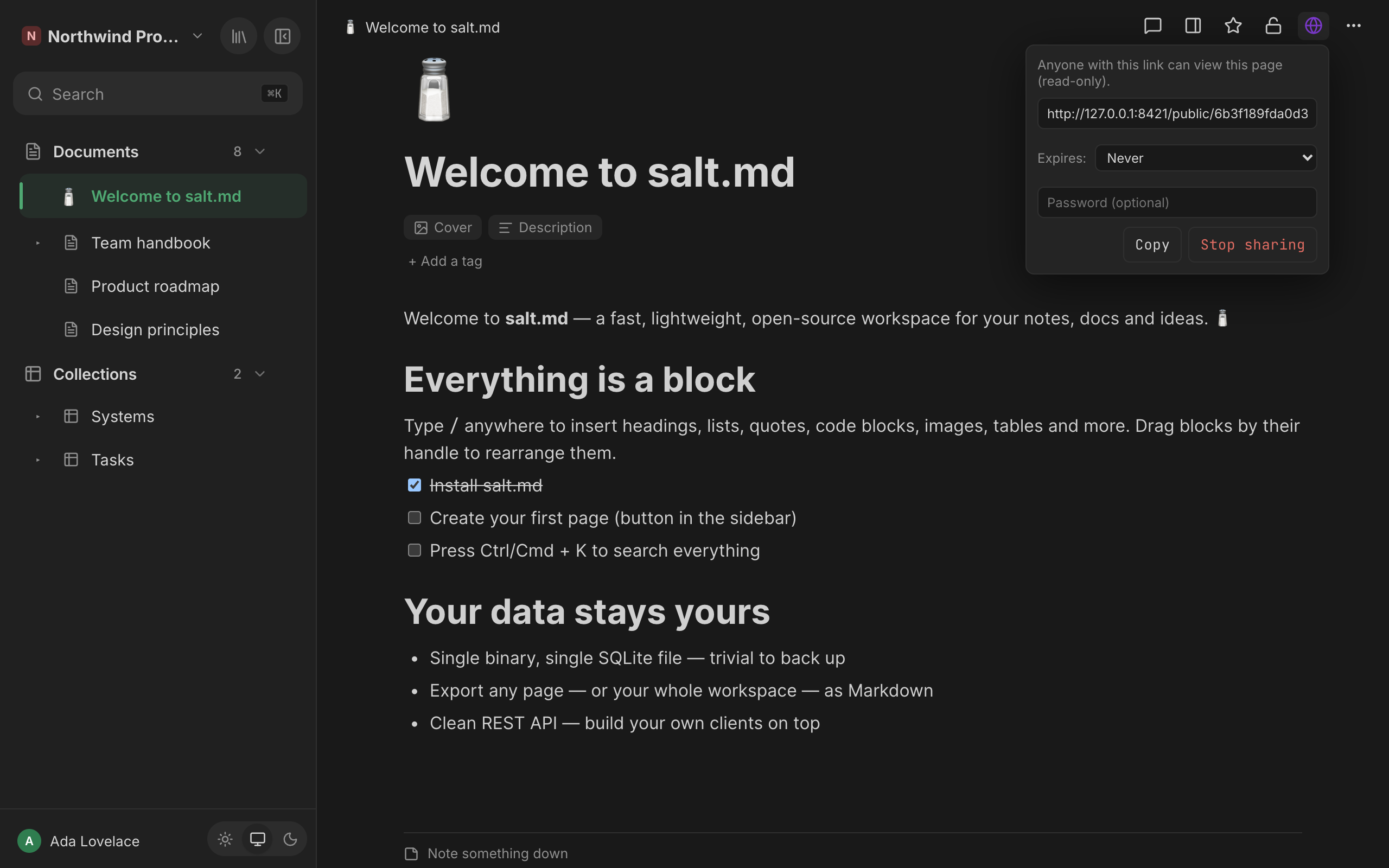
- Click the globe button in the topbar. Its tooltip is Share to web (read-only link). On a narrow window the topbar keeps only the star, the panel button and More; the globe moves into that ⋯ menu under the same name.
- The menu opens and the link is created straight away. The field reads
Creating…for the moment it takes, then holds the address. Above it: “Anyone with this link can view this page (read-only).” - Optionally pick an expiry under Expires: —
Never,In 1 day,In 7 daysorIn 30 days. - Optionally type a password into the Password (optional) field. It takes effect when you leave the field.
- Copy puts the address on the clipboard. Clicking into the field selects the whole address, for a browser where the clipboard button is blocked.
Three behaviours of this menu are worth knowing before you use it a second time.
Opening the menu publishes the page. There is no “publish” button and no confirmation. If you open the globe menu to see whether a page is shared, you have shared it. Use Stop sharing to undo that.
The menu never shows an existing link. Nothing in salt.md reports whether a page is currently published, so the dialog cannot show you the link you made last week — it makes a fresh one, and the old one dies at that moment. The same happens when you change the expiry or leave the password field: each of those re-mints the link. So the address you send out is the address you copied in that sitting; a link that has been passed around cannot be given a password afterwards without breaking it.
A second sitting publishes an unprotected link. The expiry and the password
live only in the open menu, never on the page. Navigate away and back, or
reload the browser, and the menu reopens at Never with an empty password box —
and mints a link on exactly those settings. A page that carried a password and a
seven-day expiry yesterday is public with neither from the moment somebody opens
its globe menu today. If protection matters, set it again in the same sitting
and hand out the new address.
Taking protection off works the same way, which is the one useful side of it:
clearing the password field and leaving it, or setting Expires: back to
Never, mints a fresh open link. There is no separate “remove password” — the
removal is a new link without one, at a new address.
Who can publish
Publishing needs write access to the page: an admin or a member of its workspace. A viewer sees the globe button, and clicking it produces the message “Sharing failed”.
Somebody else’s private page is the exception. Only its owner and the workspace’s admins can read such a page at all, and write access is built on read access — so an ordinary member cannot publish a colleague’s private page any more than they can open it.
The link belongs to the page, not to the person who made it. Anyone with write access can publish and revoke, and they all act on the same single link. A colleague opening the globe menu on a page you published replaces the address that is already circulating; their Stop sharing kills it.
The address in the link
The host in the link is not necessarily the address you are looking at. salt.md picks the best external base it knows, in this order:
| Source | Used when |
|---|---|
| The configured public base URL | An administrator has set one |
| The built-in HTTPS domain | A domain is configured and switched on |
| The active Cloudflare tunnel address | A tunnel is running |
| The address of your own request | Nothing else is configured |
That is why a link copied from http://localhost:8420 can come back as
https://salt.example.com/public/… — the point is that the link works from
outside, which the address in your browser bar may not. See
Your own domain.
The host is decided once, when the link is minted, and baked into the text you copy. It is not worked out again per visit. If the tunnel is switched off later, or the configured domain changes, a link already sitting in somebody’s inbox stops resolving — although the token behind it is still perfectly valid. Publish again to get an address on the new host.
Expiry
An expiry is absolute and counted from the moment the link was minted, not from
the last visit. Never is the default.
The first request after the expiry deletes the link and shows the visitor a plain page:
Not found This link is invalid or has expired.
An expired link and a made-up link are indistinguishable from outside, which is deliberate — a visitor learns nothing about whether the page exists.
Over MCP the expiry is a number of days and is not limited to the four choices the menu offers.
Password protection
A password is optional and independent of the expiry — a link can have both, either or neither.
A visitor who opens a protected link gets a small form instead of the page:
🔒 Protected page This page is protected by a password.
Password[ Open ]
A wrong password redisplays the form with Wrong password. in red. The password is sent in the form body, so it never appears in the address bar or in a browser history entry.
Three properties of this that surprise people:
- There is no session. Nothing is remembered after the page is shown, so every fresh visit — including a reload — asks again.
- The password cannot be read back or changed in place. It is stored scrambled together with the token, and neither you nor an administrator can recover it. Setting a different one re-mints the link.
- It is a second lock on an already unguessable door. The link is the real secret; the password stops a forwarded link from being casually opened by whoever it was forwarded to. It is not an account, and it identifies nobody.
What a visitor sees
The document is the page, rendered plainly: the page icon and title as the heading, the description underneath it if the page has one, then the content. The browser tab shows the page title. There is no navigation and no sign-in prompt.
There is no salt.md branding on the document. The two gates in front of it are the exception, and both name the product in the browser tab: the password form’s tab reads “salt.md — protected page”, the “Not found” page’s tab reads “salt.md”.
Content survives with its structure: headings, bullet and numbered lists, checklist items (as ticked boxes that cannot be clicked), quotes, code blocks, tables, dividers, callouts, toggles (which open and close), columns, bookmarks and links.
Links behave in two different ways, which matters if the page was written by somebody else:
- A link carried by a file, image or bookmark block is checked. Anything
that is not
http,httpsormailtois replaced by a dead link. - A link written inside the text goes out exactly as it was typed. It is not checked and not rewritten.
What is not in the document:
| Not included | What the visitor gets instead |
|---|---|
| Sub-pages | Nothing. Only the page you shared |
| Links to other pages of your instance | A link into the app, which lands on the sign-in screen |
| An embedded collection | A link into the app, labelled ▦ Datenbank — fixed text, not the collection’s name, and not the rows |
| Files uploaded into this instance (images, attachments) | A broken image or a dead link — they sit at an address that needs a signed-in account. An image whose address points at another website loads normally |
| The cover image | Nothing |
| Properties of a database row | Nothing; only the row’s title and body |
| Comments, notes, version history | Nothing. They are never part of a share |
| A table of contents block | Nothing; it is built by the app |
| A table’s header row | Ordinary cells. The document has no header row, so the first row is not set apart |
The file limitation is the one that catches people out. An image you dropped
into a page is stored at an address that requires a signed-in account, and a
public page’s <img> points at that address — so the picture that is there for
you is missing for the visitor.
If the images matter, use ⋯ → Print / as PDF and send the PDF. That view opens in a tab of the app, where you are still signed in, so the pictures are in the document you print. ⋯ → Web page (.html) does not help: the downloaded file goes through the same renderer and points at the same internal addresses, so it shows the same gaps as the public page (Import and export).
Publishing a collection
A collection can be published too, from the same globe button, and it renders
differently: as raw Markdown in a monospaced block. Nothing is turned into a
web page — the visitor reads the title on the first line with its # still in
front of it, then a pipe table.
- Every row that is not in the trash, in the collection’s own order — not the filter, sort or grouping of any view. A board’s columns and a calendar’s dates have no meaning here.
- One column per property, in schema order, with Title first.
- Rollup, formula and backrelation columns are empty. Those values are worked out when the app reads a collection, and the public table does not work them out. The headings are there; the cells are blank.
- The other columns print what is stored, not what the app shows you. A
checkbox is
✓or blank; select and multiselect show the option names; a date is the stored value (2026-07-18), never reformatted for the visitor’s region; a number can carry trailing zeros (3.2500); a checklist stays empty. A relation prints the internal ids of the pages it points at, and a person column prints the internal id of whoever was picked from the member list — ids, not titles and not names. - Rows marked private are included. The private flag governs who may read the page inside salt.md; it does not filter this table. Check a collection for private rows before you publish it.
- Sub-pages of the rows are not included.
Sharing more than one page
There is no “share this branch”. A sub-page has its own globe button and its own independent link, and publishing the parent does nothing for it — so a small tree means publishing each page separately and sending several addresses.
The links between those pages do not join up either. A link from one of your pages to another always points into the app, even when the target has a public link of its own; a visitor who clicks it lands on the sign-in screen.
Turning it off
Stop sharing revokes the link at once if you have write access to the page. The next visitor gets the “Not found” page. There is no grace period and no way to bring a revoked token back — publishing again produces a new address.
The menu empties and closes either way. A refused revoke looks exactly like a successful one, so a viewer who clicks Stop sharing has not revoked anything, and nothing on screen says so.
Three related cases:
- Moving a page to the trash does not revoke its link. The link stays alive and shows a bare “Not found” — the page for a token that is still valid but has nothing to show — while the page is in the trash; restoring the page makes the same link work again (Trash and recovery).
- A page in the trash can still be published. Publishing does not look at the trash, so the link is minted and is genuinely live; it answers “Not found” until somebody restores the page, and then works.
- Deleting a page for good — emptying the trash, or the automatic purge — takes the link with it.
Nothing else revokes a link. Renaming or moving the page does not; the link follows the page. Changing the page from workspace-visible to private does not. Removing the person who published it from the workspace does not.
What is never shared
- Sharing a page does not share the workspace it lives in, and gives a visitor no way to reach anything else in it (Workspaces).
- A public link grants no session and no identity. A visitor cannot edit, comment, search, or see who else has the link.
- A page that is private can still be published, and the link works. The lock icon in the topbar and the globe beside it are separate switches (Permissions).
- The Shared shelf in the library means “visible to the workspace” — the
opposite of private. It is not a list of published pages, and there is no such
list anywhere: no counter and no marker in the sidebar. Publishing from the
browser leaves no trace in the audit log either — an
agent’s
set_sharingdoes, see below. If you need to know whether a page is published, the honest answer is to revoke and republish it. - An API token is not a share. It carries the full identity of the person who made it (Agents).
Publishing over MCP and the API
An agent connected over MCP publishes with set_sharing
(MCP tools):
| Argument | Meaning |
|---|---|
page_id | The page. Required |
public | true mints the link, false revokes it. Required |
expires_in_days | Optional. Any number of days; omitted means never |
password | Optional |
It returns the page id, the finished URL, the expiry, and the sentence “Anyone with this link can read the page without signing in. Sharing again replaces this link.” Revoking a page that was not published answers plainly that it was not shared, rather than failing.
The rules are exactly the interface’s rules, on purpose: one live link per page, and publishing again replaces the old token. Three differences apply on top:
- It counts as a write. A read-only API token is refused, as is a viewer, and a workspace that has closed itself to agents refuses it too (Agent access).
- It is recorded. Every write an agent makes is written to the activity log,
and this one is no exception: the entry names the agent, the action
set_sharingand the page. The reply it stores includes the finished address, though the Activity log dialog shows only the first 60 characters of it, which stop short of the link. This is the one route by which publishing leaves a trace at all (History and audit). - Minting a public link is not a reading operation. An agent should do it when a person asked for it, and not on its own initiative.
Over HTTP the same two acts are POST /api/pages/{id}/share — with
expiresInDays and password in the body, answering with the token and the
finished URL — and DELETE /api/pages/{id}/share. There is also
GET /api/public/{token}, which returns the shared page as JSON — title, icon,
cover, content and type — for anything that wants to render the page itself. A
password travels there in an X-Share-Password header. Neither of the public
endpoints needs an account. See The API.
Public forms
A published page is read-only in both directions: a visitor takes information away and cannot put any in. The other half of that — a stranger filling in fields and a row appearing in your collection — is a form view on a collection, published separately from the view itself. It is a different link, with its own on and off switch, and turning off a page share does not touch it.
A form share also does the one thing a page share does not: it reports its own state. The form view shows Public with Copy link and Revoke beside it when it is live, and Share publicly when it is not — so a form, unlike a page, can be checked without being re-minted. See Forms.