The library fills the main area with every page of one workspace — a shelf you browse rather than a list you read. It answers “where is that thing” when the sidebar is too narrow and search is too precise: what you had open lately, what you starred, what the rest of the workspace can see, what only you can see, and two views of the whole structure at once — an indented tree and a graph.
Creating a workspace opens a second shelf — of ready-made workspaces. The interface does not call that one a library; the last section is about it.
Opening it
Click the book icon in the sidebar header, tooltip Library — every page. It fills the main area, replacing whatever page was open. The sidebar stays where it is on a desktop; on a phone the drawer closes. Close the library with the Close button at the top right, or by opening any page from it — every navigation leaves the library.
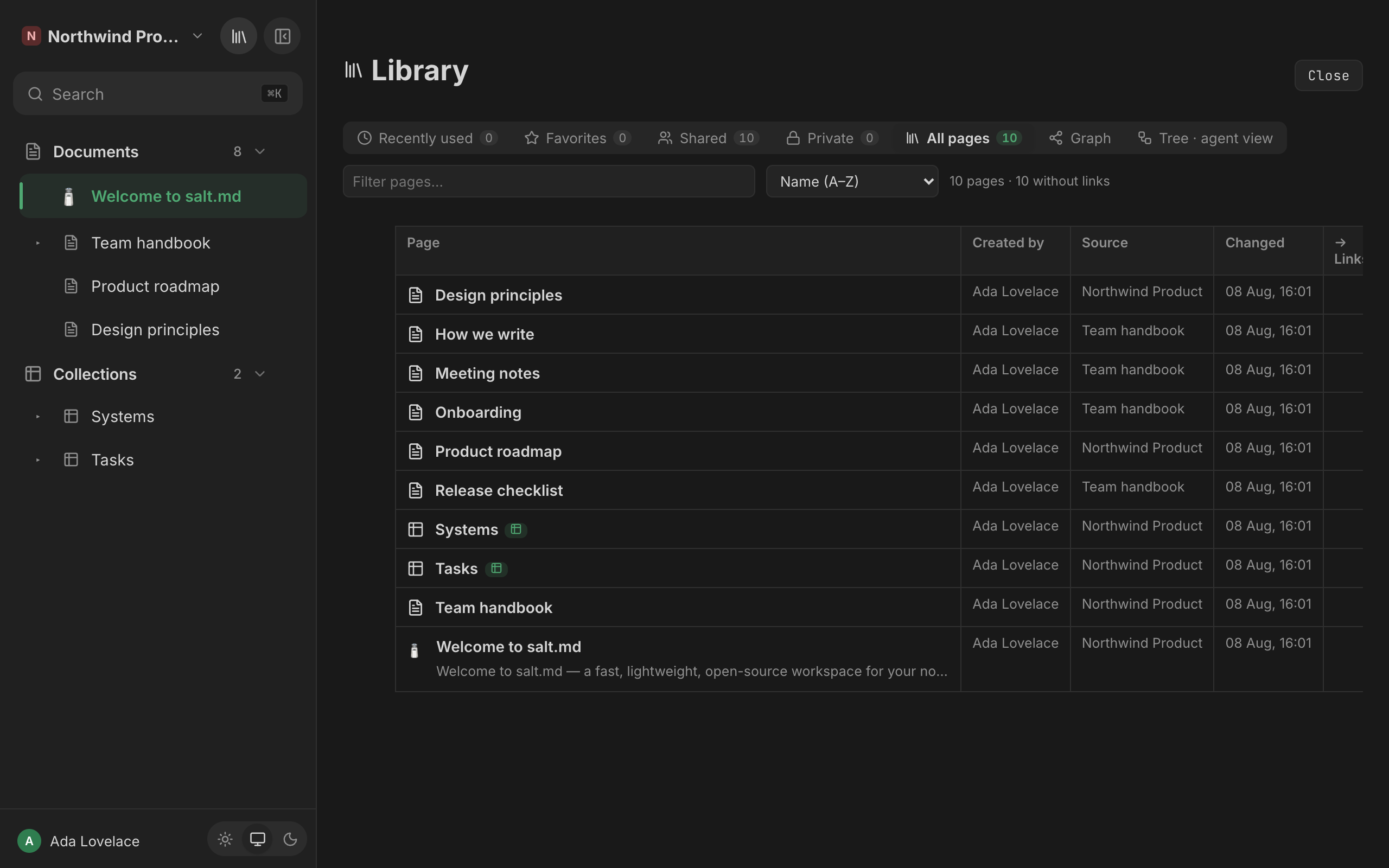
The library has no address of its own. It cannot be bookmarked or linked to, and the browser’s Back button does not close it — it moves the page underneath instead, leaving the library open on top. Use Close.
There is no keyboard shortcut for the library. ⌘K / Ctrl+K opens
search, which is the faster route when you already know the title.
What is on the shelves
The library lists pages: documents and collections alike. What it does not list:
- Pages in the trash. They live in Trash.
- Rows of a collection — with one exception. A row that carries sub-pages of its own appears, because otherwise its sub-pages would have no parent to hang off. A bare row does not; a collection can hold tens of thousands of them, and they belong in the collection’s own views.
- Anything you are not allowed to read. Private pages belonging to other people do not appear, in any tab, including the graph — except to a workspace admin, who can read everything in their workspace.
Templates do appear, on every shelf and in the tree. A template has no home in the sidebar, so the library is usually the only place you can see the whole set of them; each one shows up as an ordinary page, filed where it was made. The graph is the single exception — see What the graph leaves out.
A collection nested inside a document, or inside another collection, is a page like any other here and is shown with a small table badge, tooltip Collection.
If you are a workspace admin
A workspace admin may read every page in that workspace, private ones included, and the library applies that rule everywhere: on the shelves, in the tab counts, in the tree and in the graph. Two consequences worth knowing:
- Your Private shelf is not a list of your own private pages. It is every page in the workspace marked private, whoever owns it.
- Your page counts are higher than a member’s, and the difference is other people’s private work.
If you are not an admin, nothing of the sort reaches you: a page whose parent — or grandparent — is somebody else’s private page is left out along with everything under it. See Permissions.
The tabs
Seven tabs sit at the top. Five of them are shelves — the same table, filtered differently — and two are whole-structure views. Each shelf carries a count, so you can see how much is behind a tab before clicking it; the Graph and Tree tabs carry none.
| Tab | What it holds |
|---|---|
| Recently used | The pages this browser opened last, newest first |
| Favorites | Everything you starred |
| Shared | Every page the workspace can see |
| Private | Every page only its owner can see |
| All pages | Everything the two above add up to |
| Graph | Every page as a dot, every connection as a line |
| Tree · agent view | The indented hierarchy, with page ids and Markdown links |
The library opens on Recently used, except in a browser that has never opened a page — there it opens on All pages, so the first thing you see is not an empty shelf. A shelf with nothing on it reads No pages.
Recently used
At most eight pages, and they are remembered per browser, not on your account: your laptop and your phone keep different lists. Clearing site data clears them. This shelf has its own order — the order you opened them in — and the first sort option is called Last opened here rather than Name (A–Z) for that reason.
Shared and Private
These two split the shelf by visibility, which is a different thing from public sharing:
- Private means a page its owner and the workspace admins can read, and nobody else. In the table’s Source column such a page shows a padlock and the word Private.
- Shared means visible to the members of its workspace. It says nothing about whether the page has a public link.
A page with a public share link still counts as Shared or Private by its workspace visibility. See Permissions for what each means.
All pages
Everything, plus one extra number in the status line: after the page count it adds {n} without links — how many of the listed pages have neither an outgoing @-mention nor an incoming one. Those are the pages nothing points at and which point at nothing; on a wiki-shaped workspace that number is the clearest measure of how connected your instance actually is.
The workspace picker
If you belong to more than one workspace, a dropdown appears between the tabs and the filter box. It opens on the workspace you are currently working in — which is what “my pages” means to somebody who has seven — and All workspaces is one pick away. With a single workspace the dropdown is not shown at all.
The picker filters everything downstream from it at once: the shelves, the counts on the tabs, the tree and the graph. That is deliberate — it is why a tab count can never disagree with what is under it. The two link columns are the exception, and they are described below.
It is not remembered. Reopen the library and you are back on your current workspace. A remembered filter is the one people forget they set and then report as “half my pages are gone”.
Filtering and sorting
Filter pages… is a plain title filter, applied as you type. It is not full text — it matches the page title only. For content, use search.
In the shelves it simply hides non-matching rows. In the tree it behaves like a tree filter: a page stays visible if it matches or any page below it matches, so a hit deep in a hierarchy keeps its whole chain of parents on screen, and the matching titles themselves are highlighted.
On the Graph tab the filter box has no effect. It stays on screen, and typing in it changes nothing — the graph is narrowed by the workspace picker alone.
The sort dropdown offers four orders:
| Option | Orders by |
|---|---|
| Name (A–Z) (or Last opened on the Recently used shelf) | Title, or the order you opened them in |
| Recently changed | Last change, newest first |
| Most backlinks | How many pages point at this one |
| Most outgoing links | How many pages this one points at |
The two link orders fall back to the title when counts are equal. The sort dropdown is hidden on the Graph and Tree tabs, which have no rows to sort.
What you typed in the filter box and the order you chose survive a tab switch — move from Favorites to All pages and both are still in force. Only closing the library clears them, and that is also the moment the workspace picker snaps back to your current workspace.
The columns
Each shelf is one table with six columns.
Page
The icon, the title, and — where the page has one — the first line of what is inside it: the page’s description, or failing that a plain-text snippet the server derives from its content. Below that, up to four of the page’s tags as coloured chips. If the page has an image in it, its first image is shown as a thumbnail at the right of the cell. A collection carries the Collection badge next to its title. A page with no title reads Untitled.
Clicking anywhere in this cell opens the page.
Created by
The name of the account that owns the page.
Source
Where the page comes from, in one of three forms:
- Its parent page, as a button — click it to jump up one level.
- Private, with a padlock, if the page has no parent and only its owner (and the workspace admins) can see it.
- The workspace name, if the page sits at the top level and is not private.
Changed
When the page was last changed, in your own time zone and format.
→ Links and ← Backlinks
Two counts of @-mentions between pages: outgoing (→ Links, tooltip Outgoing @-links) and incoming (← Backlinks, tooltip Incoming links (backlinks)). An empty cell means zero. These count only real page mentions typed into page bodies — not relations between collection rows, and not the parent/child hierarchy.
Two things about these numbers that the rest of the library does not do:
- They ignore the workspace picker. They are counted over every page you can read, in all of your workspaces. So a page can show three outgoing links while the graph beside it draws one, because the other two point somewhere the picker is hiding.
- They are fetched once, when the library opens. Add a mention in another browser tab and this column does not notice. Close the library and open it again to recount.
Tree · agent view
This tab shows the real hierarchy — every live page of the chosen workspace under its actual parent, templates included — indented, with two things the sidebar does not give you:
- the first eight characters of the page id, in small grey type. Hover the row and its tooltip shows the id in full: this is the only place in the interface where you can read a whole page id off the screen.
- an md button on every row, tooltip Copy Markdown link. It copies your
instance’s address followed by
/api/export/{id}to the clipboard and confirms with Markdown link copied. Opening that URL downloads the page as Markdown — a collection comes out as a Markdown table of its rows. The link needs a signed-in browser or an API token; it is not a public link.
The md button only appears when you hover a row on a desktop. On a touch screen it is always visible. Clicking anywhere else on a row opens that page and leaves the library.
The tab is named for what it is useful for: it is close to how an agent sees
your instance over MCP, where list with kind: "pages" returns the same
hierarchy as indented text. (The note above the tree still calls that tool
list_pages, which was its name before the MCP catalogue was consolidated.) The
two are not identical — the MCP answer also includes collection rows, which this
tab drops. Templates appear in both. See Agents and
MCP tools.
A page whose parent is not in the list — because the picker is showing one workspace and the parent is elsewhere — is drawn at the top level rather than dropped.
Nothing on this tab writes anything. It is read-only throughout.
Graph
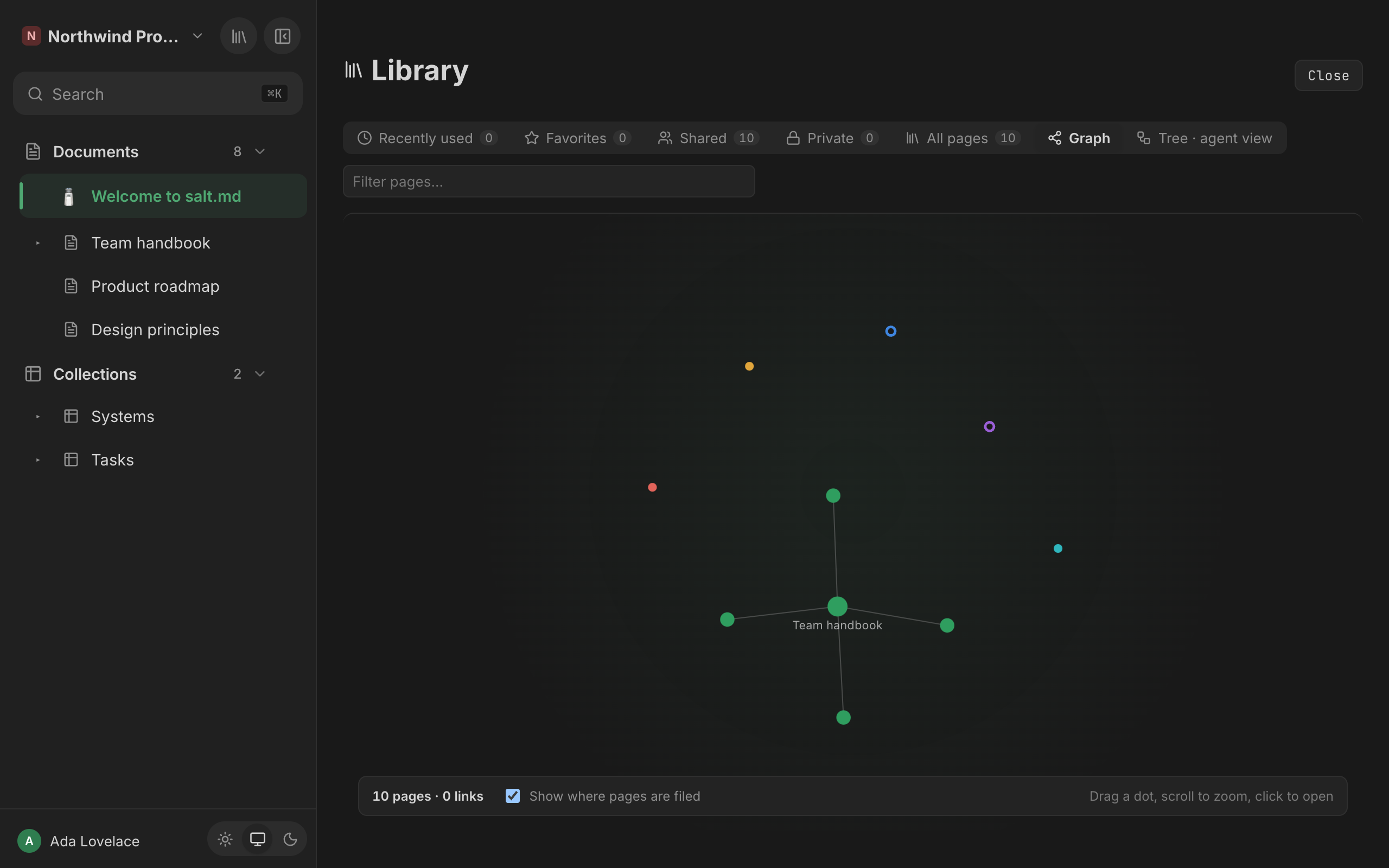
The graph draws every page the workspace picker lets through as dots on a canvas and lets a force simulation settle them into shape. It runs entirely in your browser; nothing is sent anywhere while you drag it around. It cools to a near-stop after a few seconds rather than jittering forever, and never quite freezes.
At the bottom sits a bar with the counts ({n} pages · {n} links), one checkbox and a reminder: Drag a dot, scroll to zoom, click to open.
What a dot is
One dot is one page.
- Filled = a document. A ring = a collection — the same distinction the sidebar makes, so the picture needs no legend.
- Size is how connected the page is: the more lines meet at a dot, the bigger it is. It grows with the square root of the count, so one page with fifty children does not swamp the picture.
- A page with two or more connections carries its title permanently. Everything else shows its title when you point at it. Titles longer than 26 characters are cut short. Zoom out far enough and all the titles disappear — otherwise the screen is a wall of text with a graph behind it.
The two kinds of line
This is the part worth reading, because keeping them apart is what makes the graph tell you anything.
| Line | Means | Drawn |
|---|---|---|
| Filed under | The page’s parent — where it sits in the tree | Thin, grey, quiet |
| Mention | An @-link from one page’s body to another | Bright, in the colour of the page it comes from |
The filing lines are the thing the sidebar already tells you, so they are drawn to stay out of the way. The checkbox Show where pages are filed — which starts on — turns them off entirely, both from the drawing and from the simulation, so the graph re-settles into a shape built only from mentions.
What it does not change is how big the dots are, which titles stay on screen, and which neighbours light up when you point at one. All three are worked out once from every connection, filing included, so a well-filed page keeps its size after its lines are gone.
The mention lines are what a graph is for: the connection nobody filed anywhere, which no tree can show. Giving each one the colour of its source page means a line leaving one cluster for another is visibly a crossing.
Only mentions are counted in the bar’s link number. Filing lines are not.
A mention is drawn only when both of its pages are in the picture. Narrow the workspace picker to one workspace and every mention that crosses into another one disappears from the graph — silently, because the page at the far end is not there to draw a line to. The All workspaces setting is the way to see those.
How the colours are chosen
By root — the top-level page a dot ultimately hangs off — not by workspace.
Colouring by workspace would be useless in the common case: most people keep everything in one, and the whole picture would come out a single shade. By root, every project, area or customer file gets its own colour inside one workspace.
There are ten colours and they cycle. They are handed out largest family first, so the house green lands on whatever your instance is mostly about rather than on whichever page happened to be created first.
When a page’s parent is not in the picture — most often because the parent is a template, which the graph does not draw — the walk up stops there: the highest page still shown becomes the root, and that family gets a colour of its own.
Moving around
| Action | Result |
|---|---|
| Point at a dot | It glows, its neighbours stay lit, everything else fades; the title appears in the top-left corner |
| Drag a dot | It follows the pointer and the whole graph stirs back into motion around it |
| Drag empty space | Pans the view |
| Scroll wheel | Zooms, between a quarter and three times |
| Click a dot | Opens that page and leaves the library |
All of these are mouse actions. The canvas also switches off the browser’s own pan and pinch, so on a phone or a tablet a tap opens a page and nothing else responds: the graph cannot be dragged, panned or zoomed by touch.
What the graph leaves out
Templates are not drawn. Pages in the trash are not drawn. A mention is only drawn when both ends are pages you can read — an @-link pointing into somebody’s private page is left out entirely rather than shown as a stub.
On a very large instance the mutual push between dots is applied to the first 700 pages only, so a very big graph settles less evenly than a small one. It still draws every page and every line.
The sidebar’s two tree modes
The sidebar has its own arrangement setting, and it is a common source of “where did my collection go”. It is a per-workspace choice, made by a workspace admin in Workspace settings → Layout → How the sidebar is arranged:
| Choice | What the sidebar shows |
|---|---|
| Documents and collections apart | Two sections, Documents and Collections. A collection filed under a document is shown in Collections, not under the document. Two sections. Good when the databases are the point. |
| One tree, filed where you put it | One section, called Pages, holding documents and collections together, each where you filed it. A collection stays under its document. Good for documentation. |
Split is the default. The rule behind it in one sentence: a collection is hidden under its document only when there is a second section that shows it — which is why the mixed tree hides nothing at all.
The library ignores this setting, and it ignores two more the sidebar applies: the sidebar’s Documents section leaves out templates and everything filed under a collection, and the library’s Tree · agent view leaves out neither. So the library’s tree is the place to check where a page really sits. More in Workspaces.
Making a workspace from a ready-made one
Creating a workspace opens a shelf of ready-made ones rather than a name prompt and an empty sheet.
Open the workspace switcher at the top of the sidebar and choose New workspace. (Instance admins always see the entry; everybody else sees it when your instance lets members create workspaces — see Administration.) The dialog is headed Start with a ready-made workspace, with the note: Each one brings its databases, views and house rules — and no data. You fill it.
What is on the shelf
- Empty workspace — Start from nothing and build it yourself.
- Software team — What we run, and what still has to be done to it.
- Sales pipeline — Companies on one side, deals on the other, and a board you can drag.
- Content calendar — Every channel, every piece, and the date it goes out.
- Under Or like one you already have, each of your existing workspaces that is not a personal one, offering Its databases and rules, without the content. A personal workspace — the one tagged own space in the workspace switcher — is never offered as a pattern for a team workspace, so it does not appear here. If you have no others, the whole section is absent.
Each ready-made card names how much is in it — so many databases, so many columns, so many views, and house rules when the blueprint carries them. Those numbers, and the preview you get when you open the card, are read out of the blueprint itself rather than typed beside it, so they cannot advertise something you will not get, down to the real colours of the select options. The Empty workspace card and the copies of your own workspaces carry no counts — there is nothing to count that the card does not already say.
The blueprints ship inside the salt.md binary. A fresh self-hosted install has the shelf immediately, with no network call and no sign-up anywhere. You do have to be signed in to see it.
Creating one
- Click a card. A ready-made card opens its preview, listing each database with its icon, its view chips, its columns and their options, plus the first line of the blueprint’s House rules if it has any. Empty workspace shows No databases, no rules — a blank workspace. instead, and one of your own workspaces shows Copies the databases with their columns, options and views, plus the workspace rules. Rows and documents stay where they are.
- Give it a Name. A blueprint pre-fills its own title; change it to whatever the workspace is for. Copying your own workspace and starting from empty both begin with the field blank.
- Press Create workspace, or press Enter in the Name field. You land in the new workspace.
To leave without creating anything: Back returns from a card to the shelf (the arrow beside the heading does the same), Cancel closes the shelf, and clicking the dark area outside the dialog closes it from either screen.
What arrives is structure only: databases, columns, options, views and the workspace rules. No rows and no documents — a blueprint has none, and copying an existing workspace deliberately leaves its content behind. Use Import and export if you want the content too.
Creating a workspace from a blueprint is written to the audit log.
Nothing on the shelf costs anything today. The mechanism for paid blueprints exists and refuses rather than handing one out, so if you ever see a blueprint that will not create, that is what happened.
Limits worth knowing
- Recently used holds eight pages and lives in the browser, not on your account.
- Templates are on the shelves but not in the graph. If the All pages tab’s count is higher than the page count in the graph’s own bar, the difference is your templates.
- The link counts are @-mentions only, and they are counted across all your workspaces regardless of the picker. Relations, rollups, parent/child filing and plain URLs are not counted in → Links and ← Backlinks, and only @-mentions become bright lines in the graph.
- The graph is a mouse thing. Tapping a dot opens its page; dragging, panning and zooming need a pointer.
- The library has no URL. It cannot be bookmarked, shared as a link, or closed with the Back button.
- The library is read-only. Nothing here renames, moves, trashes or creates a page; the only thing it writes is a Markdown link to your clipboard.