This page is for whoever runs the server. It covers every way to install salt.md, every environment variable and what it defaults to, how the process decides how much work it can afford, what the startup log is telling you, how it defends itself against somebody guessing passwords, and how to back up, restore and update without losing anything.
salt.md is one process. The frontend is compiled into the binary, SQLite is a pure-Go library (the builds have CGO switched off), and nothing else has to be running: no database server, no Node, no Redis, no reverse proxy unless you want one. Everything the instance owns lives in one directory.
Installing
The installer script
curl -fsSL https://raw.githubusercontent.com/saltmd/salt.md/main/install.sh | shThat installs it and starts it, and prints the address to open. SALT_NO_START=1
installs without starting, and a non-interactive run never starts it, so this is
safe in a provisioning script.
On a machine with wget and no curl, which is common on minimal server
images, fetch the script with that instead. Only this line changes; the script
downloads with whichever of the two it finds, and stops with a clear message if
neither is installed:
wget -qO- https://raw.githubusercontent.com/saltmd/salt.md/main/install.sh | shThe script reads uname and picks the matching prebuilt binary — Linux and
macOS, x86-64 and arm64. It installs to /usr/local/bin/salt when that
directory is writable, uses sudo when it is not, and falls back to
~/.local/bin when there is no sudo either. It then prints how to run the
binary, and warns you when the directory it chose is not on your PATH.
Two variables change what it does:
| Variable | Effect |
|---|---|
BIN_DIR=/path | install there instead of the automatic choice |
SALT_VERSION=v1.6.13 | download that release tag instead of latest |
The tag needs its leading v — it goes into the download URL unchanged.
The installer does not verify a checksum. If that matters to you, take the manual route under Updating, which does.
Windows is not covered by the script (it stops with “Unsupported OS”), but a
salt-windows-amd64.exe is published with every release — download it by hand.
Docker
docker run -d --name salt --restart unless-stopped \
  -p 8420:8420 -v salt-data:/data --memory=4g \
  ghcr.io/saltmd/salt.md:latest
The image is published for linux/amd64 and linux/arm64. It runs as an
unprivileged user, sets SALT_ADDR=:8420 and SALT_DATA=/data, declares
/data as a volume and exposes 8420.
Set --memory. A container with no limit cannot tell how much of the host
it is meant to get, so salt.md assumes a small machine — see
Memory for what that costs you.
Docker Compose
The repository ships a docker-compose.yml. Run it from a checkout:
docker compose up -dBy default it builds the image from the source in that directory (build: .).
To use the published image instead, uncomment the image: line and comment out
build:. The rest of the file sets mem_limit: 4g, the named volume
salt-data mounted at /data, SALT_ADDR and SALT_DATA, and
restart: unless-stopped. Two entries are commented out and waiting for you:
SALT_MEMORY_MB, and the pair SALT_TLS_CERT / SALT_TLS_KEY for serving
HTTPS directly — you supply the mount for the certificate files yourself.
From source
make build     # frontend, then backend
./salt
Needs Go 1.25, which is what go.mod requires. The frontend is built with
Node 20 in the container image and in the release workflow; no minimum Node
version is declared anywhere, so that is what has been proven rather than a
floor.
make frontend runs npm run build, which runs the whole check gate first:
type checking, the translation catalogue, the date formatting suite, the
card-layout, drop-file and tree-mode rules, and this wiki against the code.
Seven steps, any of which fails the build. That gate is deliberate; a build that
skips it can ship a broken string catalogue.
As a systemd service
The repository ships a unit at deploy/salt.service and an installer for
it. With a salt binary in hand, run as root:
./deploy/install.sh ./saltThat creates the system account salt, installs the binary to /opt/salt/salt,
creates /opt/salt/data owned by that account, installs the unit into
/etc/systemd/system/salt.service, and runs systemctl enable --now salt. It
finishes by printing “salt.md is running on port 80.”
The unit itself:
[Service]
User=salt
Group=salt
WorkingDirectory=/opt/salt
ExecStart=/opt/salt/salt
Environment=SALT_ADDR=:80
Environment=SALT_DATA=/opt/salt/data
AmbientCapabilities=CAP_NET_BIND_SERVICE
Restart=on-failure
RestartSec=2
KillSignal=SIGTERM
TimeoutStopSec=20
CAP_NET_BIND_SERVICE is what lets an unprivileged user bind port 80.
TimeoutStopSec=20 matters: on SIGTERM the binary stops the Cloudflare
connector, drains requests still in flight (up to 12 seconds), waits briefly for
the connector to confirm, and closes the database cleanly. Cut the timeout
shorter and you can interrupt that.
First run
Open the address the server printed and you get the setup screen: “Create the first (admin) account for this workspace.” — Your name, Email, Password (min. 8 characters), then Create workspace.
Whoever completes that becomes the instance owner, gets a workspace, and is its admin. The screen is available exactly once: with an account already in the database, setup answers “setup already completed”. A fresh data directory also gets one seeded page, Welcome to salt.md — deleted, it does not come back on the next start.
From there, Administration covers who may sign up, Mail covers invitations and password resets, and Reaching your instance covers domains and certificates.
The command line
The binary takes a handful of subcommands before it decides to be a server:
| Command | What it does |
|---|---|
salt | start the server |
salt backup [file] | write a consistent archive (default salt-backup.tar.gz) |
salt restore <file> | unpack an archive into the data directory |
salt version | print the version and exit |
salt fix-notion-rows | one-time cleanup of Notion-imported row bodies |
Three things about this list are easy to get wrong.
Only those four words are subcommands. Anything else — including
salt --version — is not recognised, and the process goes on to start a
server. On a machine where the service is already running that means a second
instance on the same port, and a command that never returns. Read the version
from the log, from salt version, or from /api/health.
The subcommands read SALT_DATA too. salt backup run from cron without
the same SALT_DATA as the service looks in ./data, finds nothing, and stops
with “no database at …”. A systemd unit’s Environment= lines are not inherited
by your shell, so set the variable on every command line.
Only two of them need the server stopped. fix-notion-rows opens the
database directly and takes its single connection. restore needs it stopped
for a different reason: a running server holds salt.db open and keeps writing
to the very file the archive is replacing. backup is designed to run beside a
live instance, and version touches nothing.
Configuration
Every variable carries the SALT_ prefix. The prefix is not optional: a bare
DATA=/srv/salt is silently ignored and the server writes into ./data.
| Variable | Default | What it does |
|---|---|---|
SALT_ADDR | :8420 | listen address |
SALT_DATA | ./data | data directory — database and uploads |
SALT_MEMORY_MB | detected | how much memory to assume (below) |
SALT_TRASH_DAYS | 30 | days before trashed pages are purged; 0 disables |
SALT_TLS_CERT | empty | certificate file — serves HTTPS directly |
SALT_TLS_KEY | empty | matching key file |
SALT_RESTORE_FORCE | empty | any value lets salt restore overwrite an existing database |
SALT_IMPORT_ALLOW_PRIVATE | empty | must be exactly 1; lets the URL importer reach private addresses |
Notes worth having before you hit them:
- TLS needs both halves. With only
SALT_TLS_CERTset and no key, neither TLS branch applies and the server listens as plain HTTP without complaining. SALT_TLS_CERTalso switches off the built-in Let’s Encrypt path, even when the certificate setting in the admin dialog is active. One or the other.SALT_TRASH_DAYSloses to the admin setting. The retention is read from the setting first, the variable second, and 30 last. The Instance settings dialog shows the effective number in Empty the trash automatically after (days, 0 = never) and writes it as a setting when you press Save — after which the variable no longer has any effect.SALT_IMPORT_ALLOW_PRIVATEopens a door that is shut on purpose. Importing a page from a URL refuses every address that is not publicly routable: loopback, private ranges, link-local (which is where the cloud metadata endpoint169.254.169.254lives), multicast. Set the variable to1and that refusal is lifted for the whole process, so imports can reach a wiki or a ticket system on your own network. It is deliberately a startup variable and not an API setting: whoever runs the service makes that decision, and an agent cannot. Leave it unset on anything reachable from outside.- Three limits are settings, not variables. Max. file size per upload (MB) (1 to 2048, default 50), Sign-in session length (days) (1 to 365, default 90) and Public base URL (for links, mail, calendars) all live in Instance settings → General. The public base URL is the one to fill in first: mail links, calendar subscriptions and share links are all built from it.
Where things live
Everything is under SALT_DATA. The admin dialog shows the configured path
as Data directory under Instance settings → Maintenance — as given, not
resolved, so an instance started with the default shows ./data there rather
than an absolute path.
| Path | What it is |
|---|---|
salt.db | the database — pages, workspaces, accounts, the search index |
salt.db-wal, salt.db-shm | SQLite’s write-ahead log and its shared index |
files/ | every upload, one file each under a generated id, served under /files/ |
bin/ | cloudflared, downloaded on demand when you start a tunnel |
certs/ | Let’s Encrypt cache, only when the built-in HTTPS is active |
Uploads are not deduplicated: each upload gets a fresh random name, so the same bytes uploaded twice are two files on disk. The name a person gave the file lives in the database, not on disk — see Files.
The database runs in WAL mode on a single connection. That is why
fix-notion-rows and restore want the server stopped while backup can run
beside it, and why a recent change may be sitting in salt.db-wal rather than
in salt.db — see Backing up.
Memory, and what it changes
salt.md sizes its most expensive work — extracting text out of PDFs so it is searchable — to the memory it believes it has. It looks in this order:
SALT_MEMORY_MB, if it is a positive number.- The container’s cgroup limit (
memory.maxon cgroup v2,memory.limit_in_byteson v1). /proc/meminfo.
With one deliberate exception: inside a container with no limit set, it
assumes 2 GiB rather than believing /proc/meminfo, which inside a container
reports the host’s memory. A 512 MB container on a large host would otherwise
talk itself into work that gets it killed. If the host itself is smaller than
2 GiB, the smaller figure wins.
What the number actually decides:
| Available memory | Largest PDF whose text is indexed | Extractions at once |
|---|---|---|
unknown (no /proc/meminfo — e.g. macOS) | 10 MB | 1 |
| under 4 GiB | 1 % of it, never below 5 MB | 1 |
| 4 GiB to under 12 GiB | 1 % of it, never above 50 MB | 2 |
| 12 GiB and up | 50 MB | 3 |
The thresholds are binary (4 GiB, 12 GiB), and the 50 MB ceiling bites well before the last row: 1 % of 5 GiB is already over it, so a 5, 8 or 11 GiB machine all end up at exactly 50 MB. More memory buys you extraction slots after that, not a bigger file.
Two further caps do not scale at all. Only the first 500 KB of a PDF’s extracted text is indexed, on every machine — full-text search over a whole book is not worth the database weight, so a long document is searchable by its opening rather than throughout. And the upload limit is a setting (Max. file size per upload (MB)), not a function of memory.
salt.md also tells Go’s garbage collector where the ceiling is — 80 % of the figure — so the heap does not grow past a container limit and get the process killed.
Getting this wrong never breaks an upload. A PDF over the limit is stored, listed, previewed and downloadable exactly as usual; only its text stays out of the search index. That is the whole cost, and it is why the limit scales itself instead of asking you.
Set SALT_MEMORY_MB by hand in one case: nested containers, such as Docker
inside an LXC container. There the cgroup file says “no limit” and
/proc/meminfo reports the outermost host, so neither source knows the truth.
Elsewhere, --memory on the container is the better answer because it is also
enforced.
Reading the startup log
A healthy start is one to four lines, depending on what changed. On an
unchanged Linux instance you get two: the memory line and the listening line.
The index lines appear only when an upgrade moved an index version — their
absence is the good case. A machine with no /proc/meminfo (macOS) drops the
memory line too, leaving one.
They are printed in this order.
search index: rebuilt (version 3, 736 pages)
The full-text index was rebuilt because its version changed — normally after an
upgrade that touched the tokenizer. The absence of this line is meaningful:
it means the running binary recognised the index it found, which is exactly what
you want to see after a restore. A companion line, search index: N of M pages could not be indexed, appears just before it when some pages failed.
file index: built (version 2, 626 files on 248 pages, 0 unreferenced)
Same idea for the file list. “Unreferenced” counts files on disk that no page
mentions — workspace logos and profile pictures are always in that number, since
they hang off a workspace or an account rather than a page. See
Files.
memory: 16000 MB available, soft limit 12800 MB, PDF indexing up to 50 MB, 3 extraction(s) at a time
The conclusion of the section above. If a PDF is not searchable, this line says
why. It is missing entirely when the memory figure cannot be read — on
macOS, for instance — and in that case the conservative defaults apply: 10 MB
per PDF, one extraction at a time. Setting SALT_MEMORY_MB brings the line
back.
memory: no container limit is set, so this assumes a small instance. Run with --memory=<size> …
Printed only when the process is in a container, has no cgroup limit and no
SALT_MEMORY_MB. It is the 2 GiB assumption announcing itself.
memory: SALT_MEMORY_MB="…" is not a positive number of megabytes — ignoring it
A typo in the variable. Detection continues as if it were unset. This one is
written whenever the figure is worked out, which happens before anything else at
startup — so it appears above every other line here, and again later whenever a
PDF is sized up.
salt.md 1.6.16 listening on :8420 (data: /opt/salt/data)
The server is up. Two variants: (TLS, data: …) when you supplied a certificate
pair, and (auto-HTTPS for notes.example.com, data: …) when the built-in
Let’s Encrypt path is active — that one listens on :443 and answers the ACME
challenge on :80.
tunnel: autostart (stored token), then tunnel: connected (token)
A Cloudflare tunnel configured earlier coming back up by itself. On failure you
get tunnel: cloudflared exited (…) followed by tunnel: retrying in 5s.
During operation, two lines are worth recognising:
auth: rejected password from 192.0.2.9— one per rejected credential. See Keeping guessers out.pdf extract 9f3c1e…f7.pdf: skipped for indexing, N bytes is over the M byte limit (the file itself is stored and listed as usual)— not an error, and the parenthesis is the point. The name in that line is the stored name, a generated id plus the extension, not the name the file was uploaded under. Grepping the log forcontract.pdffinds nothing; look the id up in the file list instead.
A clean shutdown prints received terminated, shutting down…, then
stopped cleanly.
Health
GET /api/health
{"status":"ok","version":"1.6.16"}
No credential needed. It pings the database, so it distinguishes a
live-but-broken process from a healthy one: when the database does not answer,
the response is 503 with {"status":"unavailable"}. Point an uptime monitor,
a Docker health check or an orchestrator at it.
One inconsistency to know about when you compare strings: a release binary
is stamped with the tag as written (v1.6.16), while the container image is
stamped without the leading v (1.6.16). Same release, two spellings.
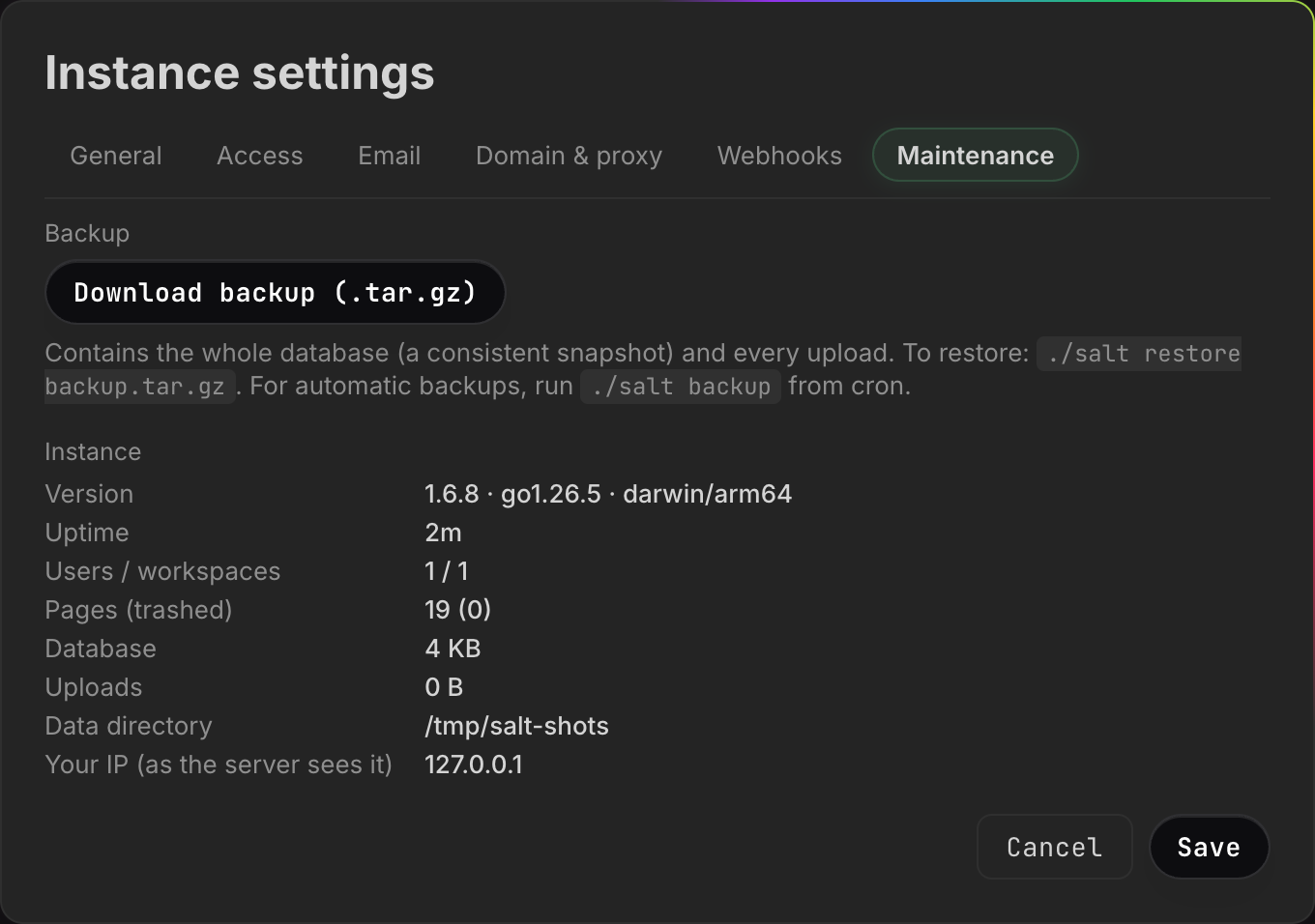
Instance settings → Maintenance shows the same facts in the browser:
Version (with the Go version and the OS/arch it was built for), Uptime,
Users / workspaces, Pages (trashed), Database and Uploads as sizes on
disk, Data directory, and Your IP (as the server sees it) — the last one is
how you check whether a reverse proxy’s headers are arriving, since it shows
proxy headers active when that setting is on.
In the background, every 30 minutes the server drops expired sessions, discards idempotency keys older than a day, prunes its rate-limit buckets, sweeps stale OAuth state, and empties trash past the retention.
Keeping guessers out
An instance on the open internet gets knocked on. Two mechanisms answer that, and they are worth having together.
The server throttles wrong credentials itself, per client address, with a token bucket:
| What | Budget | Burst |
|---|---|---|
| sign-in attempts (login, and accepting an invitation into an existing account) | 30 a minute | 10 |
| rejected API tokens | 60 a minute | 20 |
| public form submissions | 20 a minute | 8 |
| MCP tool calls — per account, not per address | 240 a minute | 60 |
Sign-in over budget answers 429 with “too many login attempts, please wait”.
The token bucket is fed only by rejected tokens, and once an address has
burned through it, bearer tokens from that address are cut off before the
database is even consulted. A valid token never pays in, so an agent making
hundreds of calls a minute is never throttled by this.
Every rejected credential is logged, in a fixed format:
auth: rejected password from 192.0.2.9
auth: rejected token from 192.0.2.9
The address is there because that is what gets banned. The email and the token deliberately are not: this line ends up in the journal, in log shipping and in backups, and “who did what” belongs in the audit log behind a login — see History and audit.
That format is a parsing contract, and docs/fail2ban/ in the repository is
what reads it: a filter (salt.conf) and a jail (jail.local, 20 hits in
10 minutes, banned for an hour). Copy them to /etc/fail2ban/filter.d/ and
/etc/fail2ban/jail.d/, reload, and check the jail with
fail2ban-client status salt. The in-process limit always works and stops when
the process does; the jail puts the ban in the firewall, where it costs the
attacker a TCP connection instead of a request.
Two conditions decide whether any of this sees the truth:
- Behind a proxy or a tunnel, turn on the trust-proxy setting first
(below), or every visitor arrives as
127.0.0.1and you would ban your own tunnel. - Behind Cloudflare, ban at Cloudflare. A local firewall rule cannot help:
the connection comes from
cloudflaredon the same machine.
Verify the filter against a real journal before trusting it — a jail that matches nothing looks exactly like a jail with nothing to do.
Backing up
Two things need saving, and they are both under SALT_DATA: the database and
the files/ directory. Nothing else in that directory is irreplaceable.
Use the built-in command. It takes a transactionally consistent snapshot of
the database (VACUUM INTO, so anything still in the write-ahead log is
included) and adds every upload, into one gzip’d tar:
SALT_DATA=/opt/salt/data salt backup /var/backups/salt-$(date +%F).tar.gzThis is safe against a running instance — it opens its own read connection,
which WAL mode allows. That makes it a cron job rather than an outage. The admin
dialog says the same: “For automatic backups, run ./salt backup from cron.”
Watch the free space on the destination filesystem. The snapshot is written
uncompressed next to the destination as <destination>.db.tmp first and only
then packed, so you need room for the whole database on top of the finished
archive. The temporary file is removed either way.
Or download one from the browser. Instance settings → Maintenance →
Download backup (.tar.gz). The file is named
salt-backup-<date>-<time>.tar.gz. This is owner-only, not admin-only:
“Only the owner can download an instance backup — it contains every workspace.”
An admin who manages accounts does not get everybody’s content by pressing a
button.
If the wrong person holds that right, the role can move: as owner, open the users dialog, select an active admin and press Hand over the instance. It is one-way — afterwards you are an ordinary admin and only the new owner could hand it back. See Administration.
The browser can download a backup but never upload one. Restoring is a command on the machine, so an operator who only ever uses the interface has no recovery path. Make sure somebody has shell access before you need it.
If you insist on copying by hand, stop the server first. Copying salt.db
on its own while the server is writing gives you a stale database, because the
recent changes are still in salt.db-wal. Copy salt.db, salt.db-wal and
salt.db-shm together, or conclude nothing from what you got. This is the
single most common way a “backup” turns out to be worthless.
A backup is a clone of the instance. To move content somewhere else — a page,
a workspace, everything you can see, as Markdown — use the export routes
instead: /api/export/{id} for one page, /api/workspaces/{id}/export for a
whole workspace, /api/export for everything. Import and
export covers them.
Restoring
systemctl stop salt
SALT_DATA=/opt/salt/data salt restore /var/backups/salt-2026-08-07.tar.gz
systemctl start salt
The server must be stopped: it holds salt.db open and would keep writing to
the very file the archive replaces. (The restore itself never opens the
database — it only unpacks the archive.)
It refuses to overwrite: with a salt.db already in the directory you get
”…/salt.db already exists; set SALT_RESTORE_FORCE=1 to overwrite”. That guard is
there because the mistake it prevents is unrecoverable. Any non-empty value of
the variable lifts it.
Restoring drops any stale salt.db-wal and salt.db-shm first, so the restored
database is never mixed with journal state from the instance it replaced, and it
rejects an archive containing a path that points outside the directory.
It does not empty the directory, though: files that the archive does not contain stay where they are. For a clean restore, restore into an empty directory. Uploads that no page references any more are harmless — they show up in the count of unreferenced files and nowhere else.
Updating
A release publishes two artefacts from the same tag: five binaries plus a
SHA256SUMS.txt on the GitHub Release (which is where the installer fetches
from), and a container image on GHCR tagged both with the version and as
latest.
Installed with the script: re-run it. Pin with
SALT_VERSION=v1.6.13 if you do not want the newest.
By hand, with the checksum verified:
mkdir -p /tmp/salt-1.6.16 && cd /tmp/salt-1.6.16
wget -O salt-linux-amd64 \
  https://github.com/saltmd/salt.md/releases/download/v1.6.16/salt-linux-amd64
wget -O SHA256SUMS.txt \
  https://github.com/saltmd/salt.md/releases/download/v1.6.16/SHA256SUMS.txt
grep salt-linux-amd64 SHA256SUMS.txt | sha256sum -c -

systemctl stop salt
SALT_DATA=/opt/salt/data /opt/salt/salt backup /var/backups/salt-before-1.6.16.tar.gz
cp -a /opt/salt/salt /opt/salt/salt.bak
install -m 755 salt-linux-amd64 /opt/salt/salt
systemctl start salt
The SALT_DATA= on the backup line is not decoration. That shell is sitting in
the download directory and knows nothing about the unit’s Environment= lines,
so without it the command looks in /tmp/salt-1.6.16/data and stops with
“no database at …”.
Download into a fresh, empty directory. wget without -O does not
overwrite an existing file — it writes salt-linux-amd64.1 beside it — and a
checksum check then happily verifies the old file against the old sums file and
reports success. Keeping the previous binary next to the new one is the whole
rollback plan, and it takes one line to use.
With Docker: docker pull first (it changes nothing until you replace the
container), then stop, back up the volume, and recreate. The stop is the only
downtime and also the only moment a clean copy of the volume is possible, so do
both in one go.
Migrations run on start and only ever add to your content. Columns and tables are created if missing; nothing of yours is dropped or rewritten in place. The derived indexes are the exception, and deliberately so: when the search-index or file-index version moves, that index is dropped and rebuilt from your pages and your files directory. Nothing is lost — both are derived from content that stays put — but the first start after such an upgrade does real work before it listens. Skipping versions is fine; an instance can migrate across several releases in one start.
Verify by behaviour, not by the version string. A mislabelled build reads
exactly like a correct one. Compare sha256sum /opt/salt/salt against the
published SHA256SUMS.txt, or pick something the new version has and the old
does not and check for that. The version string is the last thing to trust.
Reaching it from outside
Out of the box the server answers on :8420 on your own network. Everything
below is in Instance settings → Domain & proxy;
Reaching your instance from outside walks through each route in
full, including why the public base URL has to be set whichever you choose.
1 · Try it right away (quick tunnel). One button, Start quick tunnel, no
account and no domain: salt.md downloads the official cloudflared on first use
and gives you a temporary trycloudflare.com address pointing at this instance.
The dialog shows the URL with a Copy button beside it. The address changes
every time you start it, which makes it right for showing somebody the instance
and wrong for anything permanent.
2 · Permanently, with your own domain (Cloudflare Tunnel). Paste a tunnel token from a free Cloudflare account and press Connect. Nothing has to accept incoming connections, and salt.md restarts the tunnel by itself after a reboot.
3 · Straight to HTTPS (no Cloudflare, e.g. a VPS). Enter a hostname, tick Active, restart. salt.md fetches its own Let’s Encrypt certificate and listens on 80 and 443. Needs the DNS A record pointing at the machine and both ports reachable.
4 · Your own reverse proxy. Below the three cards, Manual — your own reverse proxy:
- The checkbox Run behind a reverse proxy (trust
X-Forwarded-For). Switch it on only when a proxy really is in front — the instance then sees real client addresses in the audit log, the sign-in throttle and the Your IP row. With it on and no proxy, a visitor can forge their address and walk past both the throttle and any fail2ban jail. - The field Internal address of the instance (upstream) — where the proxy should send traffic. It starts as the address you are looking at the dialog from.
- Ready-made configuration blocks generated from those two values plus your public base URL: Caddy (automatic HTTPS), Cloudflare Tunnel (no open port needed) and nginx. Each has a copy button; nothing has to be typed out by hand.
SALT_TLS_CERT and SALT_TLS_KEY are the fifth way: your own certificate pair,
served directly by salt.md, no proxy and no Let’s Encrypt.
When something is wrong
Troubleshooting collects symptoms. The three that belong to the server rather than to the product:
- Port open, requests hanging. The database runs on one connection; one request that cannot finish blocks the rest. Check the log for an extraction or an import.
- A PDF is not searchable. Read the
memory:line at startup and thepdf extract … skipped for indexingline. If the PDF is long rather than large, remember the 500 KB text cap. The file itself is fine either way. - A restore looks like it did nothing. Check for a
search index: rebuiltline. Its absence is the proof that the binary recognised the database it opened.