Running the instance: naming it, deciding who may get an account, inviting people, managing accounts through their whole life, cleaning up workspaces nobody is left in charge of, and taking a backup. This page is for the person who installed salt.md and for anyone they made an instance admin. It describes what the dialogs actually do — the role model behind them is in Permissions.
Two words matter throughout. An instance admin manages people and the server’s configuration. The owner is exactly one account and additionally holds the account lifecycle, emergency access and the backup. Almost everything below is open to any admin; the owner-only parts say so.
Where administration lives
Everything is reached from the sidebar.
| Dialog | How to get there | Who sees it |
|---|---|---|
| Instance settings | your name at the bottom of the sidebar → Instance settings | instance admins |
| Manage users | your name at the bottom of the sidebar → Manage users | instance admins |
| Workspaces with nobody in charge | the workspace name at the top → With nobody in charge… | the owner |
| Workspace members (invitations) | the workspace name at the top → Workspace settings → Members | admins of that workspace |
Administration needs a browser sign-in, and not only for changes: reading the
account list, the access overview, the clean-up view or the backup turns an API
token away too, with “This action requires signing in through a browser — an
API token is not enough.” A token is a second key to content, not an
administration pass. One exception: an admin’s token may read the instance
settings and the instance snapshot (/api/settings, /api/admin/info) — it
just cannot change them. See
Permissions.
Where the owner comes from
There is no step that appoints one. A fresh instance shows Create the first (admin) account for this workspace. instead of a sign-in form, and whoever completes it becomes the instance admin and the owner in one go — both roles on the same person, until they are handed on. The same step creates a shared workspace called Workspace, makes that account its workspace admin, and marks it Open to every new user, which is why every later account lands there as well. Setup runs exactly once; a second attempt is answered with setup already completed. The screen itself is in Getting started.
Instance settings
Six tabs — General, Access, Email, Domain & proxy, Webhooks, Maintenance — and one pair of buttons at the bottom, Cancel and Save. Save writes the fields of every tab at once, so you can change the instance name and the signup policy in one pass. Some controls do not wait for Save because they act the moment you press them: starting or stopping a tunnel, connecting or disconnecting a mail account, sending a test mail, and adding or removing a webhook. Cancel therefore does not undo those.
General
| Field | Default | Range |
|---|---|---|
| Instance name (sign-in page & title) | empty | free text |
| Public base URL (for links, mail, calendars) | empty | a URL |
| Max. file size per upload (MB) | 50 | 1–2048 |
| Empty the trash automatically after (days, 0 = never) | 30 | 0–3650 |
| Sign-in session length (days) | 90 | 1–365 |
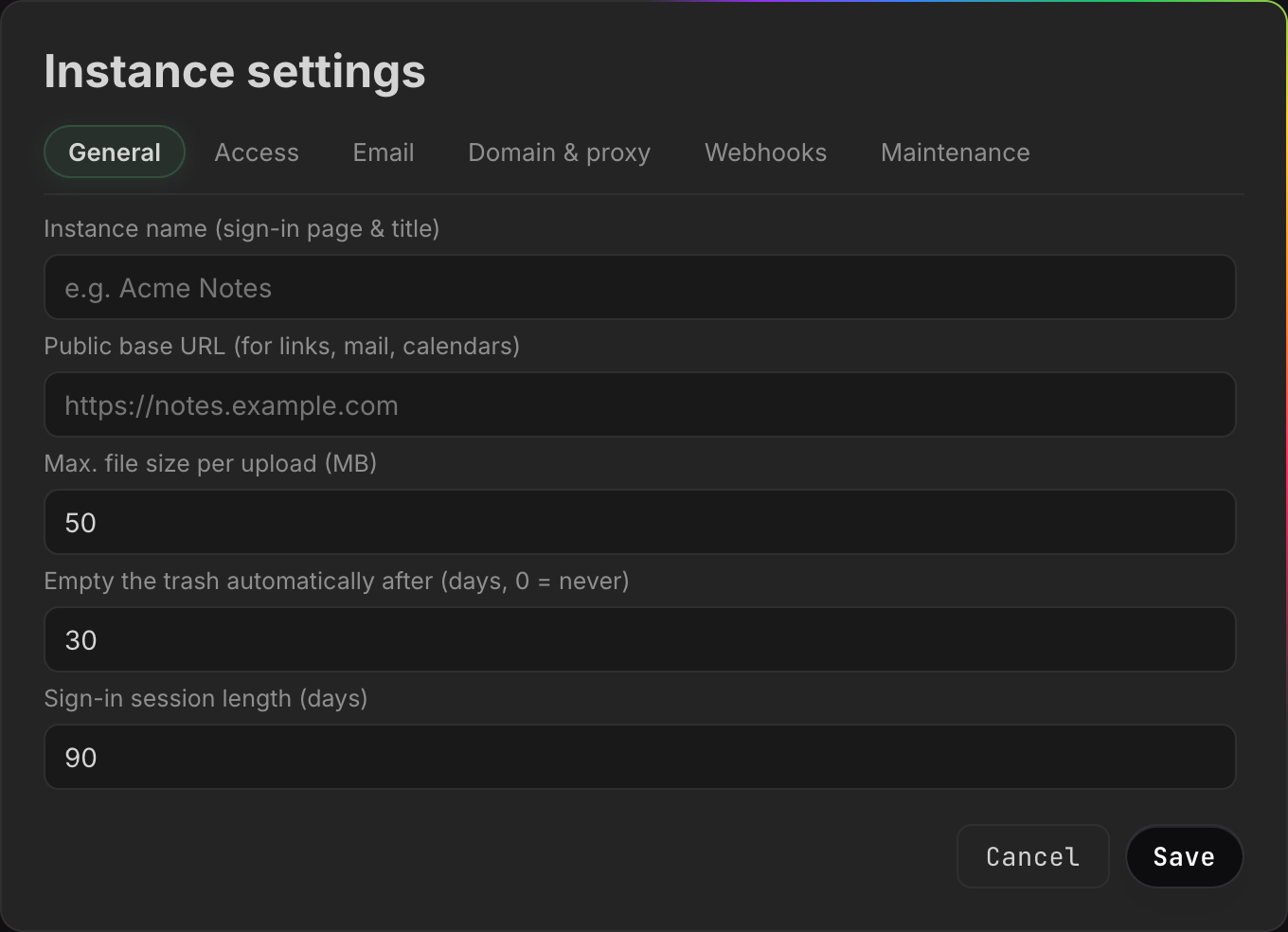
The instance name replaces the wordmark on the sign-in page, becomes the browser tab title of that page, and names the instance on the approval screen an agent sees when it signs in (Agent access). It is not the title of the application in general: once you are inside, the tab reads salt.md again, because the name is fetched by the sign-in screen and nothing else sets it. Left empty, the sign-in page says salt.md. The placeholder in the field is e.g. Acme Notes — pick your own name, not that one.
There is no instance logo. The salt.md mark above the sign-in heading is fixed; the picture you can change is per workspace, in Workspace settings.
The public base URL is what invitation links, public share links, the calendar subscription and the agent connection command are built from — not the address your browser happens to be using, which matters the moment somebody opens the interface on a LAN address and copies a link out of it. With a Cloudflare tunnel or the built-in HTTPS domain running, links fall back to those and the field can stay empty. See Reaching it from outside.
The upload cap is enforced per file, in the browser upload and over MCP alike, but the two say it differently. The browser refusal reads “file too large — max 50 MB”. An agent is told “file is 84 MB — the limit is 50 MB; upload it through the browser (/api/upload) or raise max_upload_mb in the settings” — worth knowing if somebody quotes a message at you. See Files.
The trash setting is swept by a background pass every 30 minutes: pages
trashed longer ago than the limit are deleted for good. 0 disables the sweep
and the trash keeps everything. Without a stored setting the environment
variable SALT_TRASH_DAYS decides, and failing that 30 days. See
Trash and recovery.
The session length applies to sessions created from then on — it is both the cookie’s lifetime and the row in the database, so an old session is not retroactively shortened or extended.
Access
Who may register? — three policies:
| Option | What happens |
|---|---|
| By invitation only (default) | self-registration is refused; the sign-in page shows no “create account” link |
| Email domain allowed | anyone whose address is at one of the listed domains may register themselves |
| Open (anyone) | anybody with the address of the instance may register |
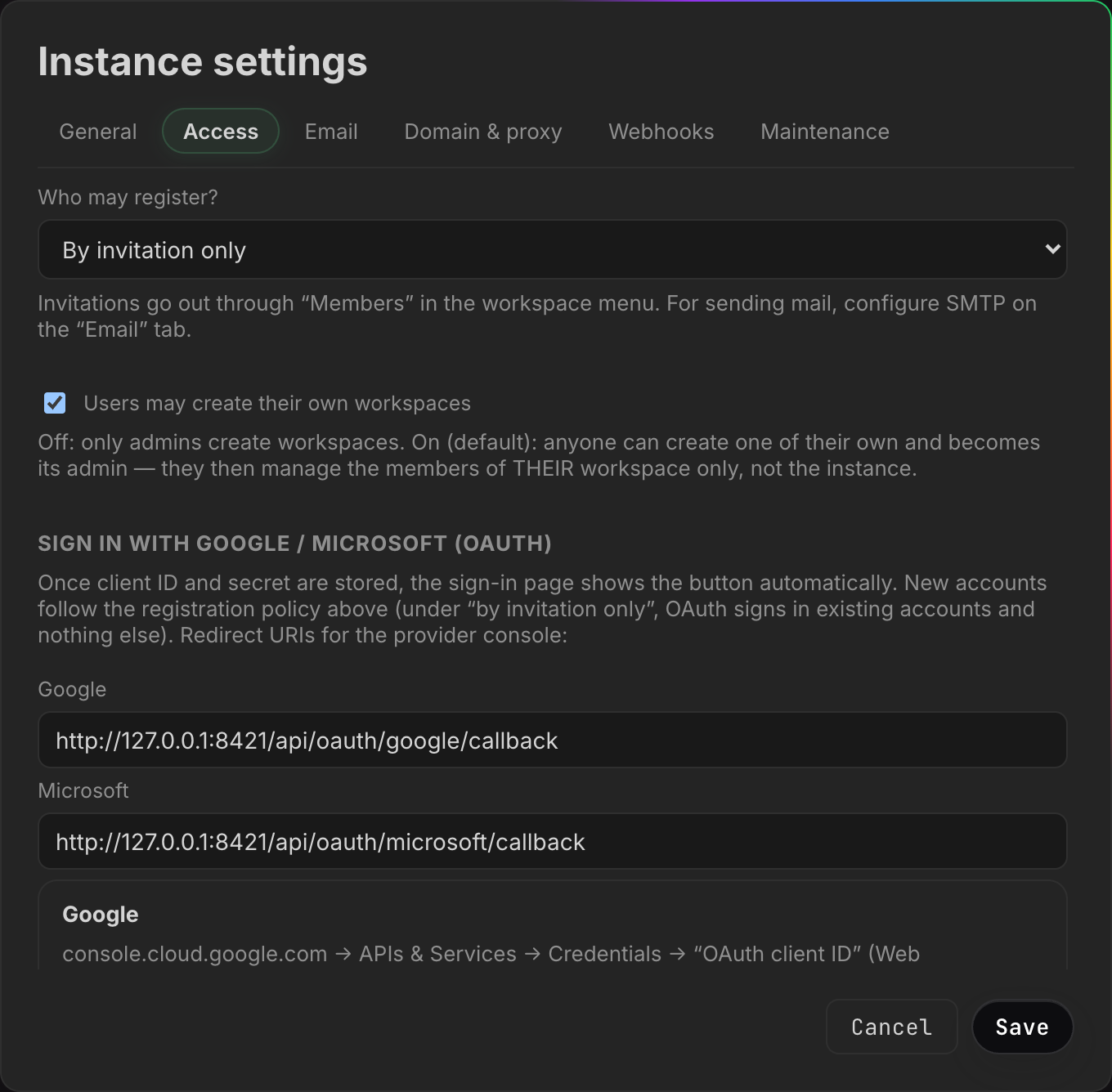
Choosing Email domain allowed reveals Allowed domains (comma separated). The list never leaves the server: the sign-in page is told only the mode, so a stranger cannot read off which sender domains this house trusts. Someone whose address does not match is told “This email address cannot register on its own. Ask for an invitation.” — without naming the domains either.
The policy governs single sign-on too. Under By invitation only, a Google or Microsoft button signs existing accounts in and creates none: an unknown address gets “no account for … — registration here is by invitation”.
However an account comes into being — self-registration, SSO, an invitation, or created by an admin — it always gets the same two things: its own personal space, named after the person, and membership of every workspace marked “Open to every new user”. On top of that, an invitation joins the workspace it was written for, in the invited role, and an account created by an admin joins whatever was ticked under Workspace access in the create dialog. Nothing else, and in particular nothing is inherited from the admin who created it.
Users may create their own workspaces — a checkbox, on by default. Off, only admins create workspaces, and everyone else gets “creating workspaces is disabled on this instance — ask an admin”. On, anybody can create one and becomes its workspace admin — which makes them responsible for that one workspace’s members, not for the instance.
The rest of the tab configures Sign in with Google / Microsoft (OAuth): the redirect URIs to paste into the provider’s console are shown ready to copy, and the client ID and secret go underneath. A stored secret shows as •••••• (stored) and is never sent back to the browser. The whole procedure, including the one mistake that costs an afternoon, is in Single sign-on.
Two ways, both on the tab at once.
Sending through Google / Microsoft — no SMTP is one click: Connect with Google or Connect with Microsoft. Those buttons reuse the OAuth app from the Access tab, so without a stored client ID and secret they are greyed out (Set up Google OAuth on the Access tab first). In the provider’s window you may pick any mailbox, not necessarily the one you sign in with. Once connected the row offers Send test mail and Disconnect, with a field Override the sender address (optional, alias) underneath for sending as an alias of that mailbox. One trap the dialog names: a Google OAuth app left in “testing” expires the connection after 7 days — move it to production and enable the Gmail API.
Or the classic way: SMTP — host, port, user, password, Sender (From). A stored password shows as •••••• (unchanged) and an empty field keeps it.
Send test mail goes to your own address and reports the result. Details, including why mail is a convenience and never a dependency, are in Sending email.
Domain & proxy
Four routes to a public address, in the order the tab lists them:
- Start quick tunnel — a temporary
trycloudflare.comaddress that changes on every start. cloudflared is downloaded the first time. - A permanent Cloudflare tunnel: paste the token from the dashboard, press Connect. salt.md keeps it running across restarts.
- Built-in HTTPS: a domain field plus an Active switch — salt.md fetches its own Let’s Encrypt certificate and listens on 80 and 443.
- Your own reverse proxy: set Internal address of the instance (upstream) and copy one of the three generated blocks (Caddy, Cloudflare Tunnel, nginx).
While a tunnel runs, its status line carries the address and a Stop button; after a failure it shows the error and a Reset.
Above the generated blocks sits Run behind a reverse proxy (trust
X-Forwarded-For), which decides whether the instance believes proxy headers
about who a visitor is. Leave it off without a proxy — with it on, anybody could
claim any address and walk past the sign-in rate limit. See
Reaching it from outside.
Webhooks
Call an address of your choosing when a page is created, changed or thrown away. The message names the page and never carries its content.
Enter the Address to call, tick which of the three events you want under
When should we call? (page.created, page.updated, page.trashed) and
press Add. The signing secret appears once, under Copy this secret now — it
is shown only once. — your receiver uses it to check the X-Salt-Signature
header. Dismiss it with I have it and it is gone.
Under Configured, each hook shows its address, its events and either not called yet or a last call: line with the HTTP status the receiver answered and when — with Remove beside it. Both Add and Remove take effect immediately, without Save. See Webhooks.
Maintenance
Download backup (.tar.gz) produces a consistent snapshot of the whole database plus every upload, in one archive. It is owner-only: the button is visible to any admin, but the server answers “Only the owner can download an instance backup — it contains every workspace.” The archive holds every workspace, every file and every password hash, which is why it does not follow the admin flag.
Restoring, and taking backups on a schedule, happen on the server:
./salt backup                    # writes salt-backup.tar.gz — put this in cron
./salt restore backup.tar.gz     # unpacks the archive into the data directory
salt backup is safe against a running instance. salt restore is not a wipe:
it unpacks the archive over whatever is in the data directory, so anything the
archive does not contain stays behind. And it refuses outright if a database is
already there — ”…/salt.db already exists; set SALT_RESTORE_FORCE=1 to
overwrite”. Restore into an empty directory, or set that variable deliberately.
The full procedure is in Self-hosting.
Below the button, Instance shows a live snapshot:
| Row | What it says |
|---|---|
| Version | version · Go version · operating system and architecture |
| Uptime | since the process started |
| Users / workspaces | how many of each exist |
| Pages (trashed) | active pages, with trashed ones in brackets |
| Database | size of the SQLite file |
| Uploads | total size of the files directory |
| Data directory | where on disk that is |
| Your IP (as the server sees it) | plus proxy headers active when the proxy switch is on |
The last row is the honest way to test the proxy setting: it echoes the address the server believes you have.
Invitations
An invitation is per workspace and creates no account until it is accepted.
- Switch to the workspace, open Workspace settings → Members.
- Type an address in Invite by email (blank = link only), or leave it empty.
- Pick the role the person should get: Member, Viewer or Admin.
- Press Invite.
The link is copied to your clipboard at once and shown under Invitation link (valid 14 days, copied):. If you gave an address and mail is configured, the invitation also goes out by email; the toast says which happened — Invitation sent by email or Invitation link copied. Mail failing costs nothing: the link is on screen either way, ready to paste into a chat.
Invitation mail is written in English whatever language the interface is in, because it reaches somebody who has no account yet and therefore no known language.
What the recipient sees at /invite/<token>:
- Not signed in, no account yet — a small form for name, email and password (minimum 8 characters). Accepting creates the account, joins it to the workspace with the invited role, and signs them in.
- Not signed in, but the address already has an account — the same form asks for the real password. If that account uses two-factor sign-in, a 2FA code field appears after the first attempt, not before it. This is a sign-in, so it is treated as one: a leaked invitation link can never take over an existing account.
- Already signed in — a one-click Join. If the invitation was addressed to a different account, joining is refused and they are asked to sign out first.
Two limits worth knowing. A link is single use: accepting deletes it. And joining never changes an existing membership — somebody who is already a member with a higher role keeps it.
Only a workspace admin of the target workspace may create the invitation, owner or not.
The rest of the Members dialog
Inviting is the bottom half of it. The list above does three more things:
- Change a role. Beside every other member sits a dropdown — Admin, Member, Viewer — and picking one applies at once. The last admin cannot be demoted (“cannot demote the last admin”).
- Remove somebody, with the ✕ button, after a Remove Ada Lovelace? confirmation naming them.
- Leave the workspace yourself — the same ✕ on your own row, labelled Leave. Non-admins can do this and nothing else here.
Leaving or removing asks a second time when private pages would be left behind: “This person has n private page(s) here. They stay in the workspace and will only be visible to its admins afterwards.” — the point being that the pages do not travel with the person. See Workspaces and Permissions.
Manage users
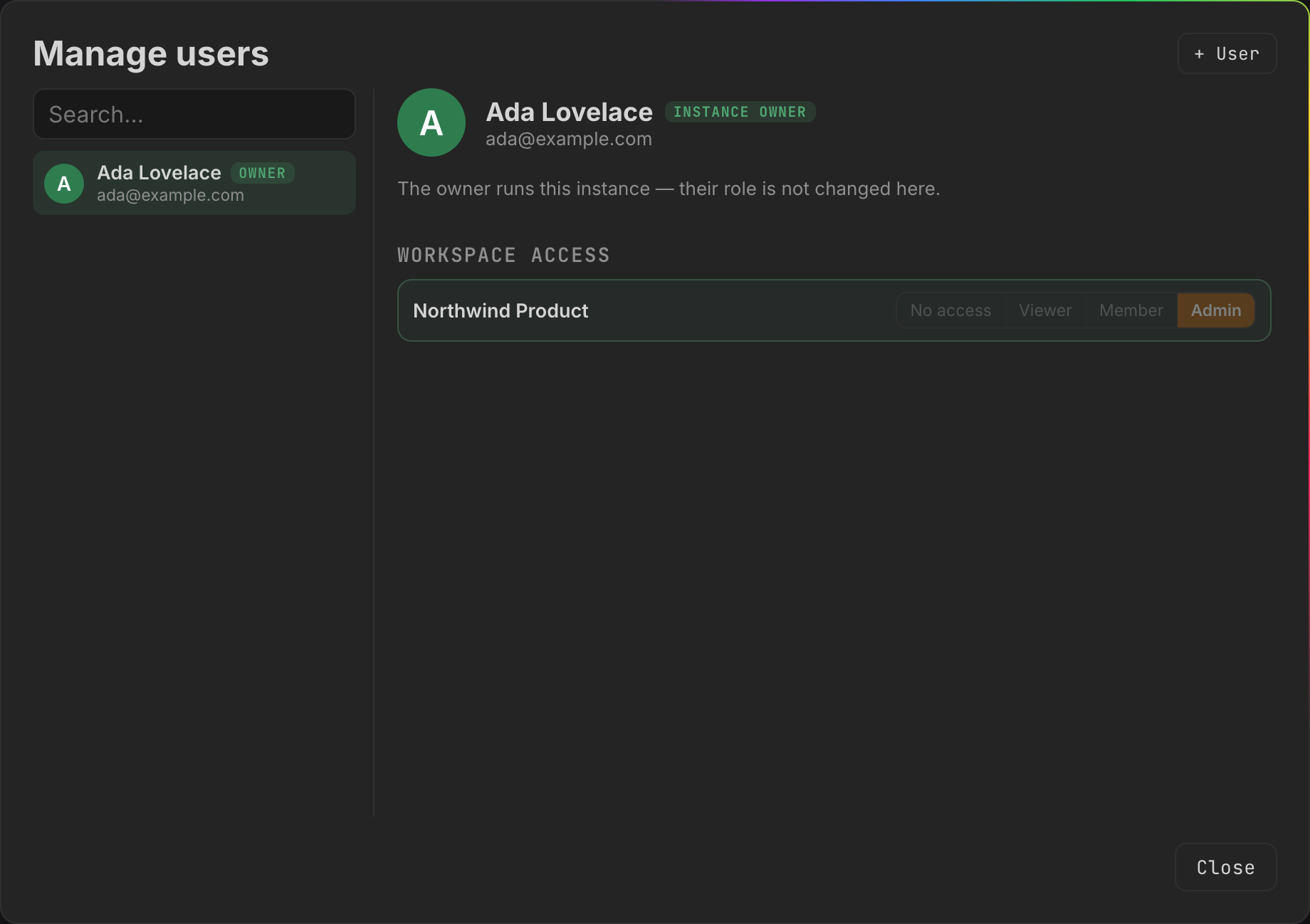
The left pane lists every account with a Search… box above it, which matches name and email address — useful when several people share a first name. Badges mark them: deactivated, owner, admin. Pick one and the right pane shows the detail; press + User to create one instead. Everything that can happen to an account in its lifetime is on that right-hand pane.
Creating an account directly
+ User opens Create a new user, and the subtitle says what that means: Creates the account straight away — no email is sent. You supply Name, Email and an Initial password (min. 8 characters), optionally tick Instance admin (may manage everything), and set a role per workspace under Workspace access. Then Create user.
Two things happen that the form does not show. The account gets its own personal space and any workspaces open to everybody, regardless of what you ticked. And assignments are honoured only for workspaces you may actually grant — the owner anywhere, an admin only where they are a workspace admin themselves. A row you are not entitled to grant is silently skipped rather than refused, so check the result if you were assigning outside your own workspaces.
There is no password-reset email in salt.md, and no field in this dialog for
setting somebody else’s password. What an admin can change about another account
is its name, colour and picture; the password and the email address are
the owner’s alone — “Only the owner can change another account’s password or
email. As an admin you can send an invitation.” Both go through the API
(PATCH /api/users/{id}); the dialog offers neither. For everyday cases the
answer is an invitation or a new account.
The actions on an account
| Button | Who may press it | Effect |
|---|---|---|
| Make instance admin / Revoke admin rights | admins | grants or removes instance administration |
| Deactivate account / Reactivate | admins | see below |
| Delete user | the owner | permanent, see below |
| Hand over the instance | the owner | see below |
None of them appear on your own row, and none on the owner’s — “The owner runs this instance — their role is not changed here.” You cannot remove your own admin rights (you would lock yourself out of the dialog you are standing in), and the last remaining admin cannot be demoted. An admin who is not the owner sees, in place of Delete user, the sentence “Only the owner can delete permanently — the account would take this person’s personal space with it.”
Workspace access
Under the actions, one row per workspace with four buttons: No access, Viewer, Member, Admin. Clicking one applies it immediately.
- The owner sees every shared workspace on the instance; an admin sees only the ones they are a workspace admin of.
- Personal spaces never appear here, not even for the owner. Whoever wants a guest in their own space invites them through their own members dialog.
- You cannot grant yourself anything: “You cannot grant yourself access here.”
- The last active admin of a workspace cannot be demoted or removed — “cannot remove the last admin of …”.
On the owner’s own row, a workspace they have no access to offers Emergency access. It asks for a reason (at least 10 characters), then grants read access for two hours, writes it to the activity log and emails that workspace’s admins. It is refused for personal spaces, and refused if you are already a member.
A running grant is reviewed and ended in a second place: Workspace settings → Emergency access log, in the workspace concerned. It lists every grant with who took it, when, the reason they typed, and whether it is still running, with End it now beside a live one. The server accepts that from a workspace admin as well as from the owner, but the row is drawn in the dialog for the instance owner alone — a workspace admin learns of a grant by email and asks the owner to end it. See Permissions.
Deactivating an account
Deactivating is the normal move when somebody leaves. Nothing is lost and everything stays attributable to them.
The moment it is applied:
- signing in is refused — “This account has been deactivated — talk to an admin.”
- every session ends, so an already-open browser is signed out
- every API token of that account is deleted
- their calendar subscription link stops working
- any editor they have open is disconnected, rather than typing into nothing until the next reload
Reactivating restores access but not the deleted tokens; those have to be created again. You cannot deactivate yourself, and the owner cannot be deactivated at all — “The owner cannot be deactivated — hand the owner role on first.”
A deactivated account also stops counting as somebody in charge: a workspace whose only admin is deactivated is treated as having none, which is what makes appointing a successor possible.
Deleting an account
Owner only, and irreversible. Before the confirmation appears, salt.md works out
what hangs off the account (/api/users/{id}/deletion-impact) and puts it in the
question. The lines you may see:
- The personal space ”…” will be deleted too (n pages). — their own space goes with them, along with uploads no other page references.
- Kept because others work in them: … — a personal space they had invited guests into becomes an ordinary workspace and stays with the remaining members. Their private pages in it are deleted anyway, so nobody inherits them by way of being a workspace admin.
- Left with nobody in charge: … — a shared workspace where nobody else is left at all. The instance owner takes it on rather than letting it disappear.
- n pages in shared workspaces stay where they are. — work in team workspaces is not deleted with its author.
- Deactivating is usually enough — nothing is lost that way.
If that preview cannot be loaded, the dialog says so instead of looking harmless: “The consequences could not be loaded. If this person has a personal space, it will be deleted with all its pages beyond recovery.” Independently of that, the server takes stock a second time when the deletion actually runs, and refuses outright if that fails — an empty plan reads exactly like “nothing hangs off this account”, and acting on one would strand every workspace the account was holding.
Three deletions are refused: your own account, the last remaining admin, and the owner (“hand the owner role to another account first”).
There is no undo and no export step built into the flow. If the content matters, export the workspace first — see Import and export.
Handing the instance on
The owner role is not editable; it is handed over. On another account’s row, Hand over the instance asks in full: that account becomes owner with emergency access, instance backup and the right to delete accounts, and “You will be an ordinary admin afterwards and cannot undo this yourself.”
The target must be an active account that is already an instance admin — otherwise “Only an account that is already an instance admin can take the instance over — make it one first.” A deactivated account cannot take it. There is never a moment with two owners, and any emergency grants the outgoing owner was holding end at the handover.
This is the only path out of the role. Without it, an owner who left the company could only be replaced by editing the database by hand.
What lands in the activity log
Account administration is not silent. Every one of these writes a line into the activity log, naming who did it and to whom:
| Entry | Written when |
|---|---|
| deactivated the account: | an account is deactivated |
| reactivated the account: | it is switched back on |
| deleted the account: | an account is deleted |
| handed the instance to: | the owner role is passed on |
| took emergency access: / ended the emergency access: | a grant starts or is ended early |
| adopted the ownerless workspace: | the clean-up view below |
| deleted the workspace: | any workspace is deleted, there or elsewhere |
Open it from your name at the bottom of the sidebar → Activity log. It shows the most recent changes and marks whether a human or an agent made each one.
Workspaces with nobody in charge
Owner only, reached from the workspace switcher: With nobody in charge…. It lists workspaces nobody can look after — either with no members at all, or with members but no active admin among them — and shows page, member and admin counts with the last known owner’s name.
What you can do depends on which case it is:
| Situation | Offered | Why |
|---|---|---|
| no members left, shared workspace | Adopt, Delete | nobody is affected either way |
| no members left, personal space | Delete only, with Orphaned personal space — clean up only, do not open. | it belonged to one person; clearing it up is fair, reading it is not |
| members remain, no admin | nothing here — Still has members: make one of them an admin. | the workspace belongs to the people in it |
Adopt makes you an admin of it — and its owner, if the workspace has no owner recorded any more. A workspace stranded because the account behind it was deleted still carries that account’s id in the owner field, so adopting it leaves the field pointing at somebody who is gone; the admin membership is what gives you the workspace either way. Delete asks you to type the workspace name back, then removes its pages, its search entries and the uploads nothing else references. Both are recorded in the activity log.
A personal space whose person is still a member never appears here, even while that account is deactivated — otherwise every departure would fill the list with entries nobody can act on.
An empty list says All clear — every workspace has someone in charge.
What administration does not include
- No per-page permissions. Access is per workspace plus a private flag per page. See Permissions.
- No multi-tenancy. One instance is one organisation, with one owner.
- No administrative API. The account routes, invitations, the backup and every settings change refuse API tokens; so does reading the account list or the access overview. Reading the settings and the instance snapshot is the one thing an admin’s token can still do. If an agent could create accounts, a leaked token would be an account factory. What agents can reach is in Agent access.
- No reading of content by rank. Being an instance admin grants no access to a workspace. The owner’s route in is emergency access, which is time-limited, logged and announced to the people affected.
- No control over anybody’s second factor. Two-factor sign-in is strictly self-service: every route acts on the account making the request, so neither an admin nor the owner can switch it on, off or clear it for somebody who lost their authenticator app — turning it off needs a current code from the app itself. Nothing in the interface unlocks such an account. Setting yours up is in Your account.
After an update
The version on the Maintenance tab does not prove what is running: it is a
string, and a mislabelled build reads exactly like a correct one. /api/health
returns the same string and is no better evidence. Check something the new code
has and the old does not — a route that answers 401 where an unknown path
falls through to the app with 200, or a marker in the served files. Installing
and updating is in Self-hosting.