salt.md can send email, and it sends very little of it. There are exactly three messages, and every one of them is a notification about access — never about your content. This page is for whoever runs the instance: it covers what gets sent, what those messages say, the two ways to configure sending, every field in the dialog, the test mail, and each error message you can meet.
Configuration is instance-wide and only an instance admin sees it. An instance with no mail configured at all works completely — it just makes you copy links by hand.
What salt.md sends
| Message | Subject | Goes to | Sent when |
|---|---|---|---|
| Invitation | You have been invited to salt.md | the address typed into the invite field | somebody is invited to a workspace |
| Emergency access notice | Emergency access to <workspace name> | every admin of that workspace | the instance owner takes time-limited read access |
| Test message | salt.md test message | the admin who pressed the button | you press Send test mail |
That is the whole list. There are no comment notifications, no mention alerts, no page-change digests, no form-submission emails, and no marketing of any kind. The body of a page, the contents of a collection and the files you upload never travel by mail.
The subjects are fixed. Renaming the instance under Instance settings → General changes the sign-in page and the browser title, and does not touch them: an invitation says “salt.md” whatever your instance is called. Only the emergency notice carries a name of yours, and that is the workspace’s.
There is also no forgotten-password email. Nothing in salt.md sends a reset link, so no mailbox is a route into an account. A password is changed in the account dialog by its owner, and only the instance owner can change somebody else’s — an admin who cannot reach a colleague’s account sends them a fresh invitation instead. See Accounts and Permissions.
What the three messages say
The wording is fixed and English (see below for why). Worth knowing so you can recognise one in a spam folder, or tell somebody on the phone what to look for.
The invitation:
You have been invited to a salt.md workspace.
Open this link to join: …
The link is valid for 14 days.
It does not name the workspace, so a recipient who is expecting invitations from two different teams cannot tell them apart from the mail alone. Say which one it is when you tell them it is coming.
The emergency access notice, which goes to every admin of the workspace:
…, the owner of this instance, has taken time-limited read access to the workspace ”…”.
Reason given: …
The access ends automatically after 2 hours and is recorded in the activity log.
The test message is one line: Sending mail works!
Email is a convenience, not a dependency
The invitation link is always shown on screen and copied to your clipboard, whether or not mail went out. After pressing Invite you see
Invitation link (valid 14 days, copied):
with the link in a field beside it, and a message that reads either Invitation sent by email or Invitation link copied.
That second message is also what you get when sending failed. The invite form does not report a mail error — it falls back to the link silently. So if you configured mail and the toast still says Invitation link copied, sending did not work; use Send test mail (below) to find out why.
You can invite with no address at all. The field says Invite by email (blank = link only), and that is the supported way to get a link without sending anything: leave it empty, press Invite, and hand the link over yourself. An invitation created without an address is not bound to one — whoever opens it enters their own address and picks their own password. An invitation created with an address only works for that address.
Pick the role before you press Invite. The dropdown beside the field offers Member, Viewer and Admin, and it starts on Member. The invitation carries that role into the workspace; changing it afterwards is a separate step in the same dialog. What each role may do is in Permissions.
The link does not disappear when your clipboard moves on. It stays in the read-only field under the form until you close the dialog, and clicking the field selects the whole link so you can copy it again.
The emergency-access notice behaves the same way. It is sent in the background, one message per workspace admin, and a failure is recorded in the server log only. The access itself is on the record either way: it lasts two hours, it appears in the activity log, and the instance owner sees it under Workspace settings → Emergency access log, where a running access can be ended before its two hours are up with End it now.
Where the settings live
- Open the user menu and choose Instance settings. The entry only appears for instance admins.
- Switch to the Email tab.
- Fill in one of the two sections below.
- Press Save. The dialog closes.
Two things on this tab act immediately and ignore Save: connecting or disconnecting a mailbox, and Send test mail.
The test mail tests what is stored, not what is on screen. Typing SMTP details and pressing Send test mail before Save tests the previous settings. Save first, reopen, then test.
All of this needs a browser. Saving the settings, sending a test mail, disconnecting a mailbox and creating an invitation are all refused for an API token, however wide its scope, with This action requires signing in through a browser — an API token is not enough. A script cannot configure or repair mail sending; a person signed in to the interface has to. See The API.
Two ways to send
salt.md sends either through a Google or Microsoft mailbox you connect once, or through a plain SMTP server. If a mailbox is connected it is always used and SMTP is ignored, even when both are filled in. To fall back to SMTP, press Disconnect. Both sections sit under each other on the same tab:
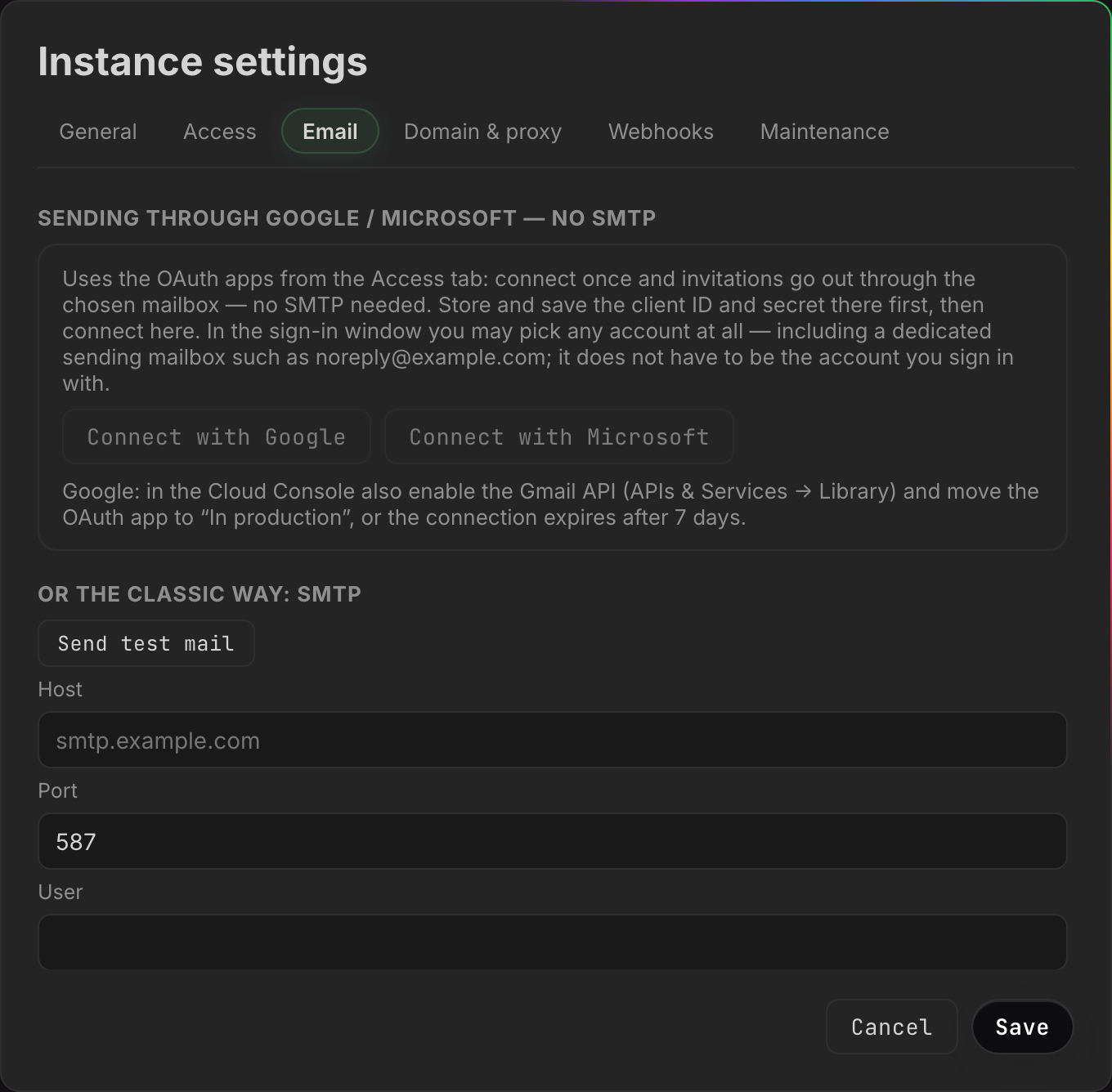
A connected Google or Microsoft mailbox
The section is headed Sending through Google / Microsoft — no SMTP. salt.md sends through the provider’s own API — no server address, no port, no app password, and it keeps working where a provider has switched basic authentication off for SMTP.
It needs an OAuth client first. Mail sending reuses the same client ID and secret as signing in with Google or Microsoft, stored on the Access tab. Until a client secret is stored, the Connect with Google and Connect with Microsoft buttons are greyed out; pressing one then says Set up Google OAuth on the Access tab first or Set up Microsoft OAuth on the Access tab first.
The greying watches the secret, not the client ID. A secret stored without its ID leaves the button live, and pressing it leaves the dialog: the browser navigates away and shows a single line, Enter the client ID and secret in the Access tab first. Go back, put the ID in, save, and start again.
Connecting is its own consent, separate from sign-in. Setting up Google for login grants salt.md nothing about mail: this flow asks for a send permission of its own and stores its own token. Doing one does not do the other.
To connect:
- Store the client ID and secret on the Access tab and press Save.
- In the provider’s console, add the mail callback address as a redirect URI:
your public base URL plus
/api/admin/mail-oauth/{provider}/callback, with{provider}beinggoogleormicrosoft. This is not the same address as the sign-in callback the Access tab shows you — the mail flow has its own, and the provider rejects a redirect it has never been told about. - Back on the Email tab, press Connect with Google or Connect with Microsoft.
- Pick the mailbox in the provider’s own window and approve.
- You land back on the start page with Mail sending connected ✓. The settings dialog is gone — reopen it and switch to Email to see the connection.
What each provider is asked for:
| Provider | Permission requested | How the message is sent |
|---|---|---|
openid email plus permission to send Gmail — not read, not delete | the Gmail send API | |
| Microsoft | openid email, Mail.Send and offline_access | Microsoft Graph, with a copy filed in the mailbox’s Sent Items |
offline_access is what lets the Microsoft connection keep working tomorrow
without somebody clicking consent again. Google is asked for offline access a
different way, and its window is additionally forced to show the consent screen
every time — even for an account that has approved salt.md before. That is not
an oversight to tidy away: without the forced screen Google hands back no
lasting permission at all, and the connection would work once and then stop.
Any mailbox will do. Both sign-in windows are forced to show the account
picker, and the account you choose has nothing to do with the account you sign
in to salt.md with — a dedicated noreply@example.com sending mailbox is a
perfectly good choice.
If you opened salt.md on a different address than its public base URL,
pressing Connect sends the browser to the same step on the public address,
because the flow’s cookie belongs to that host. If you are signed in there, the
provider’s window opens straight away and you notice nothing. If you are not,
you get a bare unauthorized line instead of a sign-in screen — sign in on the
public address first, then press Connect.
For Google there is one more step in the Cloud Console, and the dialog says so:
Google: in the Cloud Console also enable the Gmail API (APIs & Services → Library) and move the OAuth app to “In production”, or the connection expires after 7 days.
An app left in testing stops sending a week later, with no change on your side.
Once connected the tab shows a green line — Connected: sends as the address, followed by (Gmail) or (Microsoft) — plus Send test mail and Disconnect.
Sending under a different address
Override the sender address (optional, alias) replaces the From address on outgoing mail. The dialog’s own condition:
The address has to be an alias of the connected mailbox (Gmail: verify it under “Send mail as” in the Gmail settings; Microsoft: alias or send-as permission). Want a different mailbox entirely? “Disconnect”, then pick the account you want in the sign-in dialog when reconnecting.
Two things to know. It takes effect on Save, unlike connecting. And it applies only to the connected-mailbox path — with SMTP, the sender is the Sender (From) field instead, and this one does nothing.
Disconnecting
Disconnect makes salt.md forget the provider, the stored token and the address, and reports Mail connection disconnected. It clears the salt.md side only: the permission you granted stays listed in your Google or Microsoft account until you remove it there.
It does not clear the sender override. That field survives a disconnect, and it is invisible while nothing is connected — so connecting a different mailbox later silently rewrites the From address to the old alias again, usually to an address the new mailbox is not allowed to send as. If you are switching mailboxes, empty the Override the sender address field and press Save before you disconnect.
The classic way: SMTP
The second section is headed Or the classic way: SMTP. Use it when there is no Google or Microsoft tenant, when the machine may only reach your own relay, or when the mail has to come from a service address on your own infrastructure.
| Field | Example shown | What it does |
|---|---|---|
| Host | smtp.example.com | the mail server. Empty means mail is off. |
| Port | 587 / 465 | arrives pre-filled with 587. Leave a real number in it |
| User | — | login name. Leave blank for a relay that wants no authentication |
| Password | •••••• (unchanged) or not set | never sent back to the browser |
| Sender (From) | salt@example.com | the From address |
The behaviour behind those fields:
- Port 465 means implicit TLS — the connection is encrypted from the first byte. Every other port, 587 included, is opened plainly and upgraded with STARTTLS.
- An empty Port is saved as empty. The 587 you see on a fresh instance is a value in the field, not a fallback that steps in later: clear it, press Save, and the stored port is nothing at all — sending then fails on the address rather than quietly using 587. If in doubt, type the number.
- A blank User means no authentication is attempted at all. That is right for an internal relay and wrong for every hosted provider.
- A blank Sender becomes
salt@plus the host name — so an instance sending throughsmtp.example.comsends assalt@smtp.example.com. Most providers reject a From address they do not recognise, so fill it in. - The password is write-only, and it cannot be taken back out. The dialog
shows
•••••• (unchanged)when one is stored andnot setwhen none is; leaving the field empty on Save keeps whatever is stored, and there is no way through the dialog to store an empty one. To stop using SMTP, clear the Host — that switches sending off, and the password stays in the database until somebody replaces it with another.
Test it before you need it
There is a Send test mail button in the SMTP section, and a second one in the green line beside a connected mailbox. They do the same thing — the second one simply is not on screen until something is connected, because that whole block is the two Connect buttons until then.
It sends to your own address — the one on the account you are signed in with — through whatever is currently stored, and reports Test mail sent to that address on success. The message is short by design: subject salt.md test message, one line of body.
Failures read differently depending on which path failed. Through a connected mailbox you get a translated sentence with the provider’s own words in brackets after it. Through SMTP you get the mail server’s raw error text and nothing else — no sentence from salt.md, no brackets — because that text comes from the server you are talking to. A refused connection, a rejected login and a TLS complaint all arrive that way, in English, worded by whoever wrote that mail server.
Do this before you invite anybody.
Why invitations go out in English
Every account can pick its own language, and the interface follows it. Mail cannot. An invitation reaches somebody who has no account on this instance yet, so there is no language preference to read — the server would have to guess. It sends English instead, the same language the product’s source is written in. The emergency-access notice goes out in English for the same reason.
When something goes wrong
Errors that come back to the dialog arrive in your own language. Errors from the connect round trip arrive as a message on the start page. Where the provider wrote something itself, it is appended verbatim in brackets — nobody can translate a sentence somebody else wrote.
| Message | What it means |
|---|---|
| No mail delivery is configured — set up SMTP, or connect Google or Microsoft. | No mailbox connected and no SMTP host. Nothing is broken; nothing is set up. |
| No mail provider is connected. | A mailbox is connected but the OAuth client it belongs to is gone — see below. |
| Enter the client ID and secret in the Access tab first. | Connect was pressed with a client secret stored but no client ID. It arrives as a bare line in the browser window, not as a message in the dialog. |
| The connection to the mailbox has expired — connect it again. | The stored token no longer works: consent was withdrawn, a password changed, or a Google app left in testing hit its seven days. The tab still says Connected — press Disconnect first, then Connect with Google or Connect with Microsoft. |
| The provider refused to send the message. | The mailbox is reachable but rejected this message — usually a sender address it will not send as, or a permission missing in the tenant. The provider’s own words follow in brackets. |
| Cancelled. | You closed or declined the provider’s consent window. Whatever reason it gave follows in brackets. |
| Expired — please connect again. | More than ten minutes passed between pressing Connect and finishing. |
| Could not be verified — please connect again. | The round trip could not be matched to the one you started. Start again from the Email tab, not from a bookmarked link. |
| No authorization code. | The provider sent the browser back without a code. Nothing follows in brackets. |
| Token exchange failed. | salt.md could not reach the provider’s token endpoint at all — a network or DNS problem, or no answer within fifteen seconds. Nothing follows in brackets. |
| The provider refused the connection. | The provider rejected the exchange itself — a wrong client secret, or a redirect URI it does not know. Its own words follow in brackets. |
| No refresh token received — remove the access in your account settings and connect again. | The provider handed back a one-off permission instead of a lasting one, which happens when the account has already approved this app. Remove salt.md from that account’s connected apps and connect once more. |
Three cases worth naming separately:
Nothing arrives and nothing failed. Check the spam folder first, then whether the sender address is one the mailbox is actually allowed to send as. Providers accept the submission and drop the message when it is not.
It sent yesterday and not today. For a connected mailbox that is the stored token: consent withdrawn, a password change, a policy expiring it, or the Google seven-day case. Disconnect and connect again. For SMTP it is usually a rotated app password.
The tab says Connected: sends as … and every send says No mail provider is connected. The connection and the OAuth client are stored separately, and the green line only checks the connection. Clearing or replacing the client ID on the Access tab therefore leaves a mailbox that looks connected and cannot send. Put the client ID back, or press Disconnect and connect again.
Links in the mail point at the wrong address
Invitation links are built from the instance’s public address, not from whatever host the browser happened to use. salt.md picks the first of these that exists: the Public base URL from Instance settings → General, then a configured HTTPS domain, then a running tunnel address, and only then the address of the request itself.
So an invitation created while you were on 192.0.2.10 carries a link the
recipient can open — as long as one of the first three is set. If invited people
report a link that does not resolve, set Public base URL (for links, mail,
calendars) on the General tab to the address they can reach, for example
https://notes.example.com. The same value matters for
sign-in and for reaching the instance from outside.
Invitation links are valid for 14 days. After that the recipient sees that the invite has expired and needs a new one.
Turning it off
Clear the SMTP Host and press Save; press Disconnect if a mailbox is connected. Sending is then off, and salt.md behaves exactly as it does on an instance that never configured mail: invitations show their link on screen for you to send however you like, and emergency-access notices exist only in the log.
See also: Workspaces for who may invite, Administration for the rest of the instance settings, and Single sign-on for the OAuth clients this page borrows.