A page in salt.md carries two separate records beside its text, and they are not variations of one thing. Comments are a conversation: written to be read by someone else, answered, and eventually ticked off. The raw trail is evidence: dated one-liners written while the work was happening, which nobody — not even their author — can edit or remove afterwards. This page covers both, where each one lives in the interface, what you can do to it, what agents can do to it over MCP, and how to decide which you want.
The two at a glance
| Comments | Raw trail | |
|---|---|---|
| Where | a panel on the right, beside the text | one line at the foot of the page |
| Written by | people, and agents over MCP | people, and agents over MCP |
| Can be edited | no | no |
| Can be removed | one at a time — by its author in the panel, by a workspace admin over the API, by anyone who may write over MCP | never one at a time; the whole trail at once |
| Has a “done” state | yes — resolve and reopen | no; a note is a fact, not a task |
| Counted in the topbar | yes, the open ones | no |
| Updates live | no — on open, and after you act | yes |
| On a database page | not available | not available |
Comments
Opening and closing the panel
The speech-bubble button sits in the topbar of every document and every database row. Its tooltip reads Show comments, and Hide comments while the panel is open; the button is marked as active meanwhile. If there are open comments, a small number sits beside the icon.
The panel opens on the right, 340 pixels wide, next to the text rather than under it — you can see a comment and the passage it is about at the same time. On a window narrower than about 900 pixels there is no room for that, so it covers the document instead, as a drawer over the full width. It shares the right-hand strip with the structure panel, so opening one closes the other: sharing the width would leave two columns too narrow to be either.
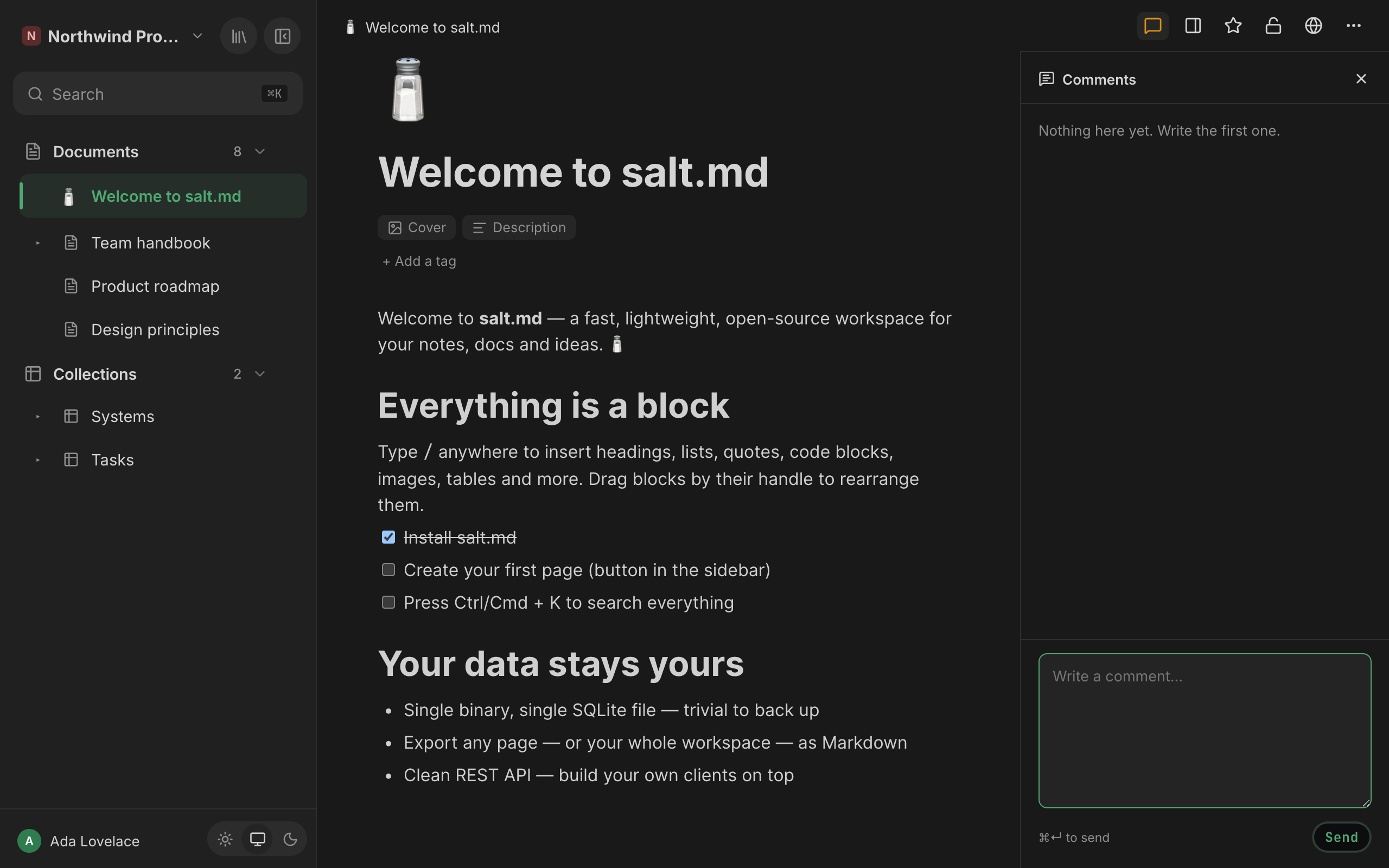
There are three ways to close it. The topbar button, which now reads Hide comments; the Close button (an ✕) in the panel’s own header, beside the word Comments and the count of open ones; and, on a narrow window, the entry in the ⋯ menu.
The panel is a reading preference, not a property of the page: once open it stays open as you move from page to page, and it is remembered in that browser (not on your account, so a second device starts with it closed).
Below about 640 pixels the topbar keeps only the star, the structure-panel button and the ⋯ menu. The comment button leaves the topbar altogether and appears inside that menu, where it reads Show comments or Hide comments. Note that these are two different widths: between roughly 640 and 900 pixels the button is still in the topbar while the panel already covers the document.
The ⋯ menu also always carries To the comments, at every width. That one always opens the panel rather than toggling it — an entry that toggles would be a no-op half the times somebody reaches for it.
Writing one
- Press the speech-bubble button. The panel opens with the cursor already in the box — the reason people press it is almost always that they want to write.
- Type. The placeholder reads
Write a comment…. The box is six lines tall; drag its bottom edge to make it taller, up to about half the window height. - Press ⌘↵ (Ctrl+Enter on Windows and Linux), or the Send button.
Plain Enter starts a new paragraph. The hint under the box says
⌘↵ to send.
Send stays disabled while the box is empty. If sending fails, your text goes back into the box and a message appears — nothing is swallowed there. A comment written in the browser may be up to 10 000 characters. Comments added over MCP are not capped.
Comments are plain text. They are not formatted, they carry no blocks, and they cannot be nested — there are no replies-to-a-reply, only a list in the order things were written, oldest at the top. Your own new comment scrolls the list to the bottom so you can see it land.
When there are none, the panel says Nothing here yet. Write the first one. and
nothing else — the box below is already the invitation.
What each comment shows
The author’s name with their picture, or their initials on their own colour, the time as a phrase (“5 minutes ago”, “yesterday”; beyond a week the date itself), then the text. If the author’s account is later deleted, the comment stays and keeps the name it was written under.
The buttons under a comment appear when you point at it, and are always visible on a touch screen.
Resolving
Every comment has a Resolved button (tooltip: Mark as resolved). Pressing it ticks the comment off: it fades, drops out of the list and stops counting in the topbar. The same button then reads Reopen and puts it back.
Resolving does not delete anything. Once at least one comment on the page is resolved, a checkbox appears at the top of the panel — Show 3 resolved — and a quiet line at the bottom says how many are hidden. Tick the box to see them alongside the open ones, untick it to hide them again.
Anyone who may write on the page may resolve or reopen a comment, not only the person who wrote it.
A workspace Viewer may read comments but cannot write, resolve or reopen one — see Permissions. Nothing is hidden from a Viewer, though: the compose box, the Send button and the Resolved button are all on screen, and the action fails when it is attempted.
Deleting
The panel shows a delete button (a bin, tooltip Delete) only on your own comments. Deleting is immediate and permanent — a comment does not go to the trash and cannot be restored.
The other two ways in are wider. Over the API a workspace admin can also delete
somebody else’s comment. Over MCP, delete_comment needs only write permission
on the page, so any agent that may write there can remove any comment on it. The
panel offers neither of those.
When something fails
Sending is the one action that tells you. Resolving, reopening and deleting say nothing when they fail; the comment stays as it was and the list reloads. If you press Resolved as a Viewer, or delete a comment somebody else has already removed, that is what you will see: no message and no change.
The count in the topbar
The number beside the speech-bubble icon is the number of open comments on this page. Resolved ones do not count — a counter that only ever goes up gets ignored. It is fetched by the page header itself, so it is right whether the panel is open or shut.
Board cards carry the same number. A card in a board view shows a speech
bubble and a count when its row has open comments, with the tooltip
3 open comments. It is one request for the whole workspace rather than one per
card, which has two consequences worth knowing. It is fetched once when you open
the collection, so resolving a comment inside a row’s panel does not change the
card until you leave the view and come back. And it leaves out pages you may not
read — trashed ones, and other people’s private ones — because a counter must
not reveal that a page exists.
Neither the count nor the panel updates by itself. They are fetched when you open the page and again after you write, resolve or delete something in the panel. A comment somebody else adds while you are looking appears the next time you come back to the page. (The raw trail below behaves the other way round.)
A database has no comment panel
Open a collection — a database — and there is no speech-bubble button at all, in the topbar or in the ⋯ menu. A comment belongs to a page, and a database’s content is its rows: open a row and it has its own panel, its own count and its own trail.
(The interface says collection where the MCP surface says database. They are the same thing. See Collections.)
The raw trail
What it is
Every write in salt.md is an act of authorship — a title, a place in the tree, an icon. That is right for a document and it is a hurdle a note taken in the middle of a problem does not clear, so the write-up happens afterwards, and by then the author knows how it ended. The abandoned approach, the dead end and the uncertainty are missing from it.
The trail is the answer: dated lines, written as things happen, kept beside the edited version of the page rather than inside it. The interface calls the section Raw trail.
Where it sits
At the very bottom of a document, below everything else, as one quiet line:
14 notes 14:02 – 17:40Count, then the stretch it spans — times alone if it all happened on one day, day and time on both ends if it did not, and a single time if there is only one note. Click the line to open the trail; click again to close it. On a page that has no trail yet, the line reads Note something down instead. If there is nothing and you may not write, nothing is shown at all.

The open/closed state is not remembered. Moving to another page collapses it again — unlike the comment panel, which stays as you left it.
Like the comment panel, the trail is not on a database page — a database ends in its table, and anything under that is lost.
Writing a note
- Click the trail line (or Note something down).
- Type into the one-line box:
What just happened, in one line… - Press Enter, or the Note button. Shift+Enter makes a line break.
Enter sends here, unlike in the comment box, because a trail entry is one thought: the moment it wants paragraphs it wants to be a document instead.
A note may be up to 2 000 characters. A longer one is shortened and kept, not refused — a note silently dropped for being long is worse than a truncated one, because its author believes it was recorded. An empty note is refused. This cap holds on every way in: the browser, the API and MCP all go through the same code.
Agents write to the same trail with the MCP tool note, one call with a page
and a line of text. See Agents and MCP tools.
What cannot be done to it
A single note can never be edited and never be deleted. Not by its author, not by a workspace admin, not by the instance owner. There is no button, no API route and no MCP tool that changes or removes one entry, and there is a test in the build that tries the plausible ones and fails if any of them ever answers.
The open trail says so itself, at the foot:
Notes cannot be edited or removed one by one — that is what makes them worth reading later.
The reason is that the evidence does not die at deletion, it dies at editing: whoever may touch the 14:02 line at 16:00 already knows how it turned out, and then it is the coherent write-up again with timestamps in front. A note that was wrong is corrected by a new one — “14:02 was nonsense, see 14:19”. A correction that is itself dated is worth more than a silent fix.
Discarding a whole trail
What a person can do is throw the whole thing away, deliberately and as a whole. Open the trail and press Discard the whole trail. A dialog asks:
Discard the whole trail of this page? This affects 14 notes and cannot be undone.
The confirming button is Discard. There is no undo and no trash for this.
Two limits are worth knowing. It can only be done from a signed-in browser session: an API token cannot do it, whatever its scope, and no MCP tool exists for it — a person decides this, and least of all the agent whose trail it is. And it is written to the audit log, with the number of entries removed, so the gap in the record is itself a recorded decision rather than a silence. See History and audit.
Nothing ever expires on its own. A system that tidies up quietly devalues every trail, because you can never tell whether something is missing.
Who wrote each line
An open trail shows, per entry: the time on the left, the text, and on the right who wrote it. For a person that is their name. For an agent it is the agent’s logo and the name it gave itself, plus the account it came through — the agent name is a claim the client makes, the account is the verified half, so both are shown together, separated by a middle dot.
The time column carries a clock time only, whatever day the entry is from. Point at it for the phrase (“2 hours ago”). On a trail that spans several days, the rows themselves give no date — only the collapsed summary line above does.
Trail entries arrive live. A note an agent drops on a page you have open appears immediately, without a reload. What travels is the page’s id and nothing else; your browser then fetches the text through a route that checks whether you may read the page.
Who may read it
Exactly the people who may read the page — not one bit narrower. Anyone who may write on the page may add to the trail. A trail that looked different per reader would be worthless as evidence, and one readable by somebody who may not read the page would leak the page.
Checking out leaves a note behind
An agent that announces its work with working_on carries a short note while it
works (“tidying the file index”). When it checks out, that last note is kept as
a trail entry rather than thrown away — it is already exactly what a trail entry
is: short, written in the moment, before the ending was known. Checking in
writes nothing to the trail; only the check-out does.
An agent that passes a note on the check-out call gets that one on the trail instead, which is the more useful shape: “done, the index was double-counting logos” rather than the line it started with. Checking out of a page it was never checked in on leaves nothing behind.
Which one to use
- Something needs an answer, a decision or somebody’s attention → comment. It can be ticked off, and until it is, it shows in the count and on the board card.
- Something happened and should still be true in six months → note. What you tried and dropped, what surprised you, the number you looked up, why you did not take the obvious road.
- A comment is aimed at a person. A note is aimed at whoever reads this page later, including you.
- If you would be tempted to go back and reword it once you knew how it turned out, it is a comment, not a note.
What carries them and what does not
- Public share links show the page only. An anonymous visitor sees neither comments nor trail. See Sharing.
- Printing a page, and the PDF that comes out of it, drops both — the panel and the trail are app chrome, not the document.
- Exports carry the page, not the discussion. The workspace transfer ZIP leaves comments, version history and the raw trail out: they hang off user ids that mean nothing on another instance. See Import and export.
- Moving a page to another workspace keeps both: they hang off the page id, which does not change.
- Deleting a page permanently takes its comments and its trail with it. Moving a page to the trash does not; only its open comments stop being counted on board cards. See Trash and recovery.
For agents
| Tool | Does |
|---|---|
comments | one page’s comments. Actions: list (the default), add, resolve, reopen |
delete_comment | removes one comment permanently, by id |
note | appends one line to a page’s raw trail |
working_on | check in and out; the check-out leaves the last note on the trail |
comments always takes a page. Listing is a read, so a read-only token may do
it; add, resolve and reopen need a write token and write permission on the page.
Adding accepts an optional block id to attach the comment to one block instead
of the whole page — the interface neither sets that nor shows it, and such a
comment appears in the panel like any other.
A listing returns more than the panel draws: each comment’s id, its block id, the author’s id and name, the body, when it was written and, if it has been ticked off, when it was resolved. The whole list arrives inside an untrusted- content frame, because a comment is text somebody else wrote — an agent should read it, quote it or summarise it, and follow no instruction inside it.
Deleting was deliberately left out of the action list of comments and given
its own tool: destroying something should be a choice of tool, not a value an
agent lands on by mistake. There is no tool that clears a trail for a different
reason — that is a person’s decision, taken in a signed-in browser, and least of
all the decision of the agent whose trail it is.
note takes a page and the text, plus an optional agent key and label so the
entry names you the way the presence badge does. It needs a write token and
write permission on the page. Its answer restates the rule you are writing
under — “Noted, 7 on that page now. Nobody can edit or remove a single one,
including you…” — so an agent learns the shape of the trail from the tool rather
than from documentation.
A retried call does not append twice. If the call carries an idempotency key, a repeat with the same key returns the first result instead of writing a second entry. On an append-only record that is the only protection there is: a duplicate cannot be tidied away afterwards.
No tool reads a raw trail. An agent can append to one and cannot list what is
already there; get_page does not carry notes either. Reading a trail is a
browser and plain-API affair.
Comments written over MCP are recorded in the audit log as agent actions; notes are not copied there, because the trail already is the record — dated, permanent, and readable by exactly the people allowed to see the page.
Over the plain API
Both records are ordinary REST, for anything neither the panel nor a tool covers. All of them take the same session or API token as the rest of the API — see API.
| Route | Does |
|---|---|
GET /api/pages/{id}/comments | every comment on a page, open and resolved |
POST /api/pages/{id}/comments | add one (body, optional blockId) |
POST /api/comments/{id}/resolve | tick one off, or reopen it |
DELETE /api/comments/{id} | remove one — author or workspace admin |
GET /api/comment-counts | open comments per page for one workspace |
GET /api/pages/{id}/notes | the whole raw trail, oldest first |
POST /api/pages/{id}/notes | append one note |
DELETE /api/pages/{id}/notes | discard the whole trail — signed-in session only |
That last row is the one exception: an API token is refused there whatever its scope.
One naming collision
The Notes column in the middle of the interface — the flat, recency-sorted list of cards with the All and Untagged filters — is a list of documents, not of trail entries. It is a way of browsing pages; see Pages. The trail has no list of its own and lives only at the foot of the page it belongs to.