A fresh salt.md listens on :8420 and answers on every network interface of the
machine it runs on. That is enough for a laptop and for a server on your own
network. The moment you want a share link that works from a phone, an invitation
that a colleague can open, a calendar subscription, sign-in through Google or
Microsoft, or an agent connecting from somewhere else, you need two things: a
name the outside world can resolve, and salt.md knowing what that name is.
This page covers both. It is written for whoever administers the instance — everything here lives in Instance settings, which only instance admins see (the account menu at the bottom of the sidebar → Instance settings).
The public base address
Instance settings → General → Public base URL (for links, mail, calendars).
One field, one value, ending without a slash: https://notes.example.com.
It is not what the server listens on. It is what salt.md writes into links it hands to somebody else. The browser you are using knows the address you typed; an email does not, a calendar app does not, and a cloud agent certainly does not.
Everything in this list is built from it:
| What | Where it shows up |
|---|---|
| Public page links | the share dialog, and set_sharing over MCP |
| Public form links | the form-share dialog for a collection |
| Invitation links | the members dialog, and the mail sent with them |
| Calendar subscription | Subscribe to calendar, both the https:// and the webcal:// form |
| The MCP address | Connect an agent, in the snippet you copy |
| The downloadable skill | the address written into the file an agent later reads |
| The instance icon | what an MCP client shows next to this server’s name |
What happens when you leave it empty
salt.md does not simply fall over — it guesses, in this order, and the guess is good enough often enough that the field gets forgotten:
- the public base URL, if set;
- the domain from the built-in HTTPS setting, if that is switched on;
- the address of a running quick tunnel;
- the address the current request arrived on.
Step 4 is the one that bites. A link generated while you are browsing at
http://192.0.2.10:8420 carries that address, and it is correct — for anybody
standing on that network, at that moment. Emailed to someone outside, or written
into a repository for an agent, it is a dead end that looks like a working link.
Step 3 has its own trap: a quick tunnel’s address changes every time it starts, so links minted while one was running stop working when it is restarted.
A named Cloudflare tunnel never appears in that list at all. salt.md hands
the traffic to Cloudflare and never learns the hostname you chose in the
dashboard — the status line says exactly that:
Tunnel connected — reachable under the hostname set in the Cloudflare dashboard.
With a named tunnel, filling in the field is not optional.
Sign-in resolves it slightly differently
Three things do not use the list above: the redirect URIs for Google and Microsoft sign-in, the discovery documents an MCP client fetches before signing in, and the redirect used when an admin connects a Google or Microsoft mailbox for outgoing mail. They know exactly two sources — the configured base URL, and the host the request came in on.
Neither a running tunnel nor the built-in HTTPS domain counts there. With built-in HTTPS that rarely shows, because you are browsing that domain anyway and the request carries it. Behind a tunnel, or when you reach the instance by IP address, it is the difference between a redirect URI that matches what you registered with the provider and one that does not. So if you sign in with Google — see Signing in with Microsoft or Google — or send mail through a connected mailbox (Email), set the field.
With the field set, salt.md also redirects the start of an OAuth sign-in to that
origin. Click Sign in with Google on http://192.0.2.10:8420 and the browser
jumps to https://notes.example.com first. That is deliberate: the state cookie
set at the start of the round trip belongs to the host that set it, and a flow
that starts on one host and returns on another fails with nothing useful to read.
Connecting a mailbox on the Email tab makes the same hop for the same reason.
The redirect URIs a provider console asks for
Instance settings → Access → Sign in with Google / Microsoft (OAuth)
prints both, read-only, and selects the whole value when you click into the
field:
/api/oauth/google/callback/api/oauth/microsoft/callback
The prefix is the public base URL; failing that, a running quick tunnel; failing that, whatever address your browser is using. A named tunnel does not appear here either.
Two warnings show up under those fields when they apply:
⚠ Google and Microsoft accept HTTPS redirect URIs only (localhost aside). Start a tunnel (the “Domain & proxy” tab) or enter a public HTTPS base URL under “General” — it then appears here on its own.⚠ This is the URL of the running quick tunnel — it changes on every start. For OAuth that lasts, use a named tunnel or your own domain and enter it as the base URL.
Connecting a mailbox uses a different redirect URI on the same base —
/api/admin/mail-oauth/google/callback, and the same with microsoft — and
that one is not printed anywhere in the dialog. Register it in the provider
console alongside the sign-in one, or the mail connection fails at the last step
(Email).
Route 1 — the built-in Cloudflare tunnel
Instance settings → Domain & proxy. The tab has two halves, and their
headings are what to scan for: Public access — built in, no proxy of your own
holds the three numbered cards (this route and the next), and
Manual — your own reverse proxy everything below them (Route 3).
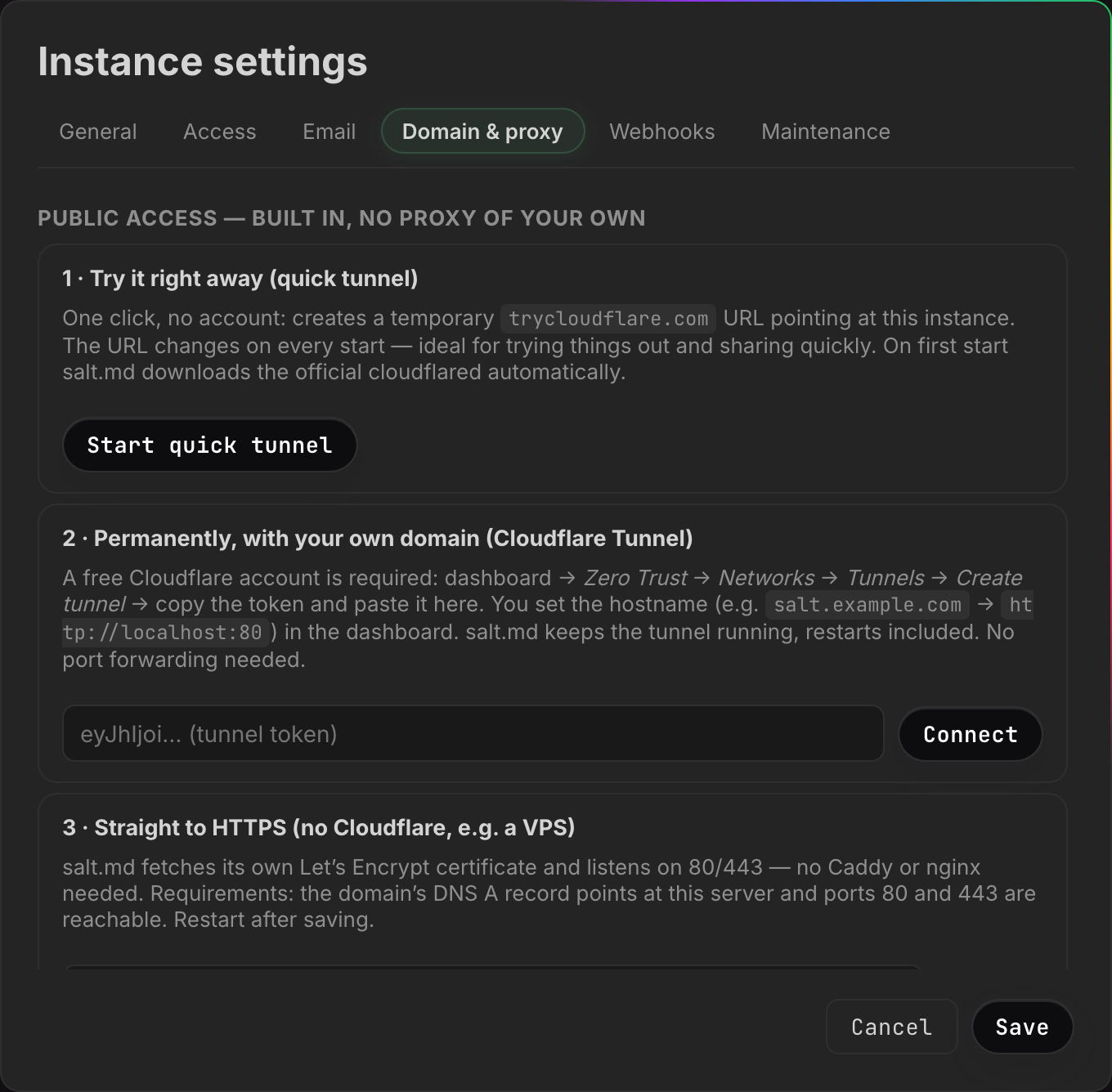
The machine dials out to Cloudflare and keeps the connection open; nothing has to accept an incoming connection. This works behind NAT, behind a firewall you do not administer, and on a home line with no fixed address. No port forwarding.
salt.md runs cloudflared itself. It looks for the program on the system’s
PATH first, then at bin/cloudflared inside the data directory
(bin/cloudflared.exe on Windows), and only if neither has it does it download
the official release over HTTPS. What triggers that download is a tunnel
start — normally an admin pressing a button, but also the automatic restart
of a stored tunnel after a reboot, which happens with nobody watching.
Builds exist for Linux (x86-64, arm64, 386, arm), macOS (x86-64, arm64) and
Windows (x86-64). Anything else answers install cloudflared manually — put the
binary on PATH or at bin/cloudflared in the data directory, the two places
above, and the tunnel starts.
Trying it — the quick tunnel
Card 1 · Try it right away (quick tunnel) → Start quick tunnel.
Within a few seconds the status line turns into Publicly reachable: followed by
a trycloudflare.com address and a Copy button. No Cloudflare account is
involved. The address is thrown away and regenerated on the next start, so this
is for showing somebody something, not for running on.
Stop ends it — and so does anything else that ends the process, because a
quick tunnel is not supervised (see below).
The status line refreshes itself every two and a half seconds, but only while the
Domain & proxy or Access tab is open. A status that looks stuck is worth
re-opening the tab for, rather than reloading the page.
Keeping it — a named tunnel
Card 2 · Permanently, with your own domain (Cloudflare Tunnel).
What salt.md needs from you is one value: the tunnel token, a long string
starting eyJhIjoi…. Everything else happens on Cloudflare’s side, and their
documentation is the authority on those screens because they change. The dialog
names the path it expects — Zero Trust → Networks → Tunnels → Create tunnel —
and what you have to set up there is:
- a Cloudflare account with your domain in it (the free tier is enough);
- a tunnel, which yields the token;
- a public hostname on that tunnel —
notes.example.com— pointing at this machine’s own address. That ishttp://localhost:8420with the default listen address. The dialog’s example sayshttp://localhost:80, which is the port the systemd unit in the repository uses; match it to your ownSALT_ADDR.
Then, in salt.md:
- Paste the token into the field on that card. It is a password field; once
stored, the placeholder reads
•••••• (token stored)and you never have to paste it again. - Press
Connect. - Wait for
Tunnel connected — reachable under the hostname set in the Cloudflare dashboard. - Go to General and set the public base URL to
https://notes.example.com.
A rejected token shows as Token rejected (Cloudflare refused the connection).
An error line carries a Reset button.
Reset is Stop wearing another label. It sends the same instruction, and
stopping also clears the flag that brings a named tunnel back after a reboot. So
a tunnel you reset after an error stays away on the next start until you press
Connect again.
One tunnel at a time. While one is running or starting, both
Start quick tunnel and Connect are greyed out, and the server refuses
a second start with tunnel is already running. Swapping in a new Cloudflare
token therefore begins with Stop.
What it does once it is up
- It survives restarts. A named tunnel is remembered and comes back on the next start, on its own. salt.md waits (up to 30 seconds) for its own port to answer before dialling out, so the domain does not serve errors during the gap.
- A named tunnel restarts itself. If cloudflared exits, salt.md waits five
seconds and starts it again — unless you pressed
Stop, which is the one thing that turns the feature off. A quick tunnel is not supervised: when its process ends, the status goes to error and nothing brings it back. - It leaves cleanly. On shutdown salt.md tells Cloudflare the connection is going away before it stops serving. Skipping that leaves a dead route registered at the edge and the domain unreachable for minutes after a restart.
- It switches on proxy trust for you. Behind Cloudflare the forwarded-IP
headers are trustworthy, so the checkbox further down the same tab
(
Run behind a reverse proxy (trust X-Forwarded-For)) is enabled automatically, and the sign-in rate limit, the limiter that throttles guessed API tokens and the log line written for every rejected credential start seeing real visitor addresses instead of Cloudflare’s. Stopping the tunnel does not switch it back off — if the instance goes back to being reached directly, untick it by hand.
Starting and stopping a tunnel requires a browser session. An API token is refused with This action requires signing in through a browser — an API token is not enough, the same rule that guards the rest of instance administration (Administration).
A tunnel is reachability, not a lock. Whoever finds the address still meets
the sign-in screen, and that is the thing protecting the content. Whatever you
put in front of the tunnel sits in front of /mcp as well, and an agent has no
way to work through a sign-in page it did not expect — so an access layer at the
edge has to let /mcp through. See Agent access.
Route 2 — built-in HTTPS, no proxy at all
Card 3 · Straight to HTTPS (no Cloudflare, e.g. a VPS), on the same tab.
Enter the domain (notes.example.com), tick Active, press Save, and
restart the process. salt.md then fetches and renews its own Let’s Encrypt
certificate.
What this changes at startup:
- it listens on
:443, whateverSALT_ADDRsays; - a second listener on
:80answers the certificate challenge and redirects everything else to HTTPS; - certificates are cached in
certs/inside the data directory, so a restart does not fetch new ones.
What it needs from the outside: an A or AAAA record for that exact domain pointing at this machine, and ports 80 and 443 reachable from the internet. Both, or the certificate is never issued.
What it needs from the machine: permission to take two ports below 1024. The
systemd unit in the repository grants exactly that
(AmbientCapabilities=CAP_NET_BIND_SERVICE) while running as an unprivileged
salt user. Started by hand as an ordinary user, the process does not get them.
The two ways that fails look nothing alike. If :443 cannot be bound, the
process stops and prints why. If only :80 fails, the process keeps running
and logs one line, http-01 listener: … — after which everything looks normal
while the certificate is never issued, because the challenge has nowhere to land.
An instance answering on :443 with every browser complaining about the
certificate is that line, in the log, from startup.
SALT_TLS_CERT wins over this setting, and the check is on that one variable
alone. Set it without SALT_TLS_KEY and you get the worst of both: the
automatic path switches off, the incomplete pair is not used either, and the
server serves plain HTTP on SALT_ADDR without saying so.
Route 3 — your own reverse proxy
nginx, Caddy, Traefik, HAProxy, a cloudflared you manage yourself. salt.md asks for nothing unusual, but four things have to be right.
- Pass
X-Forwarded-Proto. It is how the instance knows the outside is HTTPS, which decides whether the session cookie is marked secure. (X-Forwarded-Ssl: onis accepted too.) - Let WebSockets through. Live editing runs over one (
/collab/{id}). A proxy that quietly drops the upgrade leaves an editor where nobody else’s cursor ever appears and changes arrive only on reload — see Working together. - Do not buffer
/api/events. It is a stream that stays open. salt.md sendsX-Accel-Buffering: no, which nginx honours; other proxies need telling. - Raise the body limit to at least the value in
Max. file size per upload (MB)on the General tab, or uploads fail at the proxy before salt.md ever sees them.
Then tick Run behind a reverse proxy (trust X-Forwarded-For) on the
Domain & proxy tab and press Save. The tunnel buttons on that tab act the
moment you press them; this checkbox does not. It is part of the dialog and
reaches the server only when the dialog is saved — tick it, close the dialog, and
nothing has changed.
Without it, salt.md ignores forwarded-IP headers and every visitor looks like the proxy: one shared bucket for the sign-in limit and for the public-form limit, one address on every rejected-credential log line a fail2ban jail would read (History and audit), and the proxy’s address recorded as the origin beside every API token in an account. Leave it off when there is no proxy: those headers are written by whoever is calling, so trusting them without a proxy in front lets an attacker invent a new IP for every password guess.
X-Forwarded-For is read first, X-Real-Ip when that one is absent — so a proxy
that sets only the latter works too. Nothing else is consulted. The hint under
the checkbox also mentions the audit log; that is the one place an address never
goes. The activity log records who did what, never from where.
Bind the instance to loopback while you are at it. With a proxy in front,
nothing needs to reach the port from outside: SALT_ADDR=127.0.0.1:8420 makes
the instance answer on the machine itself only, and both a proxy and the built-in
tunnel reach it there. (With built-in HTTPS switched on this has no effect —
that route takes :443 regardless.)
The generated configuration
Under the checkbox, the field Internal address of the instance (upstream) is
prefilled with the address your browser is using. It is not stored anywhere: it
feeds the snippets below and nothing else, so it reads back as your browser’s
address the next time the dialog opens.
Below it, three ready-made snippets, each with a Copy button:
| Block | What it contains |
|---|---|
Caddy (automatic HTTPS) | a three-line site block — Caddy handles certificates and WebSockets by itself |
Cloudflare Tunnel (no open port needed) | the commands to create a tunnel by hand plus a config.yml |
nginx | a server block with the forwarded headers, the WebSocket upgrade, proxy_read_timeout 3600s and client_max_body_size filled in from your upload limit |
The domain in all three comes from the public base URL, so set that first —
otherwise the examples read salt.example.com and you will paste a placeholder
into a real config file.
One line under the blocks is easy to scroll past and answers a real question: with Cloudflare, leave the DNS record Proxied (the orange cloud); WebSockets are on by default there.
Checking that proxy trust actually works
Instance settings → Maintenance shows
Your IP (as the server sees it). It reads back the address salt.md attributes
to your request, with proxy headers active appended when the checkbox is on.
If that shows the proxy’s address rather than yours, the header is not arriving.
And one way to switch it off by accident. Connecting a tunnel turns proxy
trust on at the server. A settings dialog that was already open when that
happened still shows the value it loaded — unticked — and pressing Save
writes that stale value back. If the address in Maintenance stops looking right
after a round of settings changes, re-open the dialog and tick the box again.
Serving TLS directly from a certificate you already have
Two environment variables, both required:
SALT_TLS_CERT=/path/fullchain.pem SALT_TLS_KEY=/path/key.pem saltOnly one set and the server quietly serves plain HTTP — and, as above,
SALT_TLS_CERT on its own also disables the built-in HTTPS route. The rest of
the environment is in Self-hosting.
Where a fresh installation listens
curl -fsSL https://raw.githubusercontent.com/saltmd/salt.md/main/install.sh | sh
salt
The installer detects the platform (Linux and macOS, x86-64 and arm64), downloads
the matching prebuilt binary and puts it in /usr/local/bin — or $HOME/.local/bin
when that is not writable and there is no sudo. BIN_DIR=/path overrides it,
SALT_VERSION=v1.0.0 pins a version. It then tells you to open
http://localhost:8420.
It installs a program; it does not open a port, register a service or configure a
domain. The default listen address :8420 binds every interface, so the instance
is already reachable from the rest of your network — one of the three routes above
is what makes it reachable beyond that.
The repository also carries a systemd unit and a script to install it, which runs
salt.md as its own user out of /opt/salt, keeps its data in /opt/salt/data
and listens on port 80 instead.
Checking it from outside
curl https://notes.example.com/api/health
{"status":"ok","version":"…"}
/api/health needs no sign-in and pings the database, so it distinguishes a
healthy instance from one that is answering but broken — it returns 503 and
{"status":"unavailable"} in that case. It is the right target for a monitor.
The version is whatever build is running. The full surface is in
The HTTP API.
To see what address the instance believes it has, ask it from a signed-in
session: /api/public-base returns the resolved value — the same one the
Connect an agent dialog shows and the same one written into the downloadable
skill. Unlike /api/health it sits behind the sign-in, so send a
session cookie or an API token; without one it answers 401.
The three mistakes that cost an afternoon
The base URL is empty and everything looks fine. It does, from your desk. Test a share link from a phone on mobile data before believing it — Sharing and Forms both hand out addresses built this way.
Sign-in starts on one host and returns on another. The cookie is scoped to the host that set it, so nothing arrives back and the error says little. Set the base URL and use that address; the redirect described above then keeps the flow on one origin by itself.
The base URL has a typo. Nothing validates it — it is stored as typed. A wrong host there does more than produce bad links: OAuth sign-in redirects the browser to it before the flow starts. If sign-in suddenly lands nowhere after a settings change, that field is the first place to look, and Troubleshooting has the rest.